Lawyer Site
Lawyer Site Template
The Lawyer Site template is a modern, responsive website for an independent lawyer built with Astro and Tailwind CSS, with all content designed to be managed through Content Island (headless CMS).
It’s ideal for lawyers, law firms and legal advisors who want a professional, multi-language online presence — easy to keep up to date without touching any code.
What’s Inside the Template?
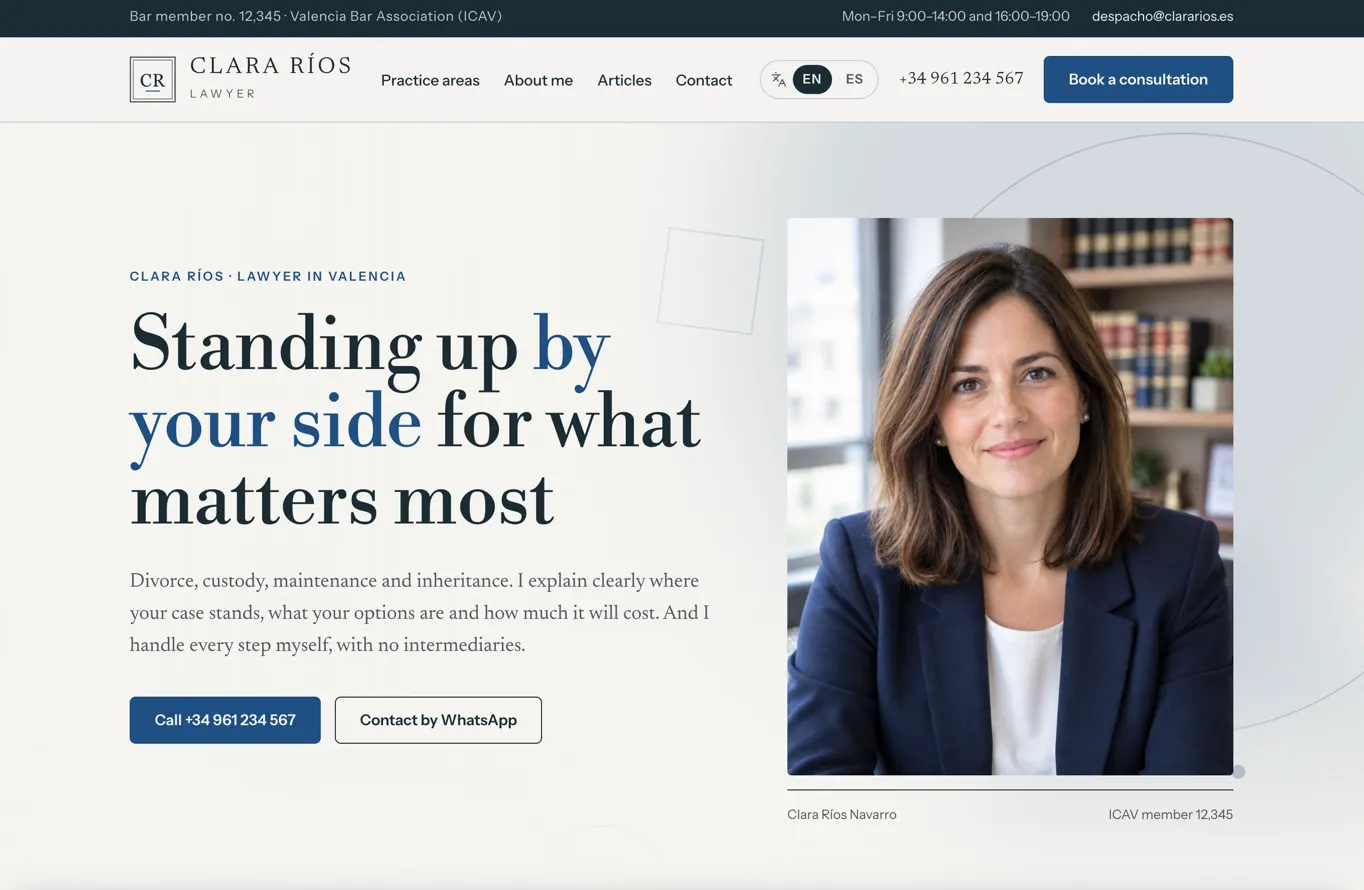
- Header: Top bar with bar association number, email and opening hours, plus the lawyer’s logo, navigation menu (Practice areas, About, Articles, Contact), language switcher and featured “Book a consultation” button.
- Hero: Main section with portrait, headline, introduction and two call-to-action buttons (phone and WhatsApp). It comes in three styles you can choose from Content Island.
- Credentials: Editorial sentence highlighting experience and key figures.
- Practice areas: Cards for each area of practice (divorce, custody, inheritance…), each with its own icon.
- Why me: Reasons to choose the lawyer, with icons.
- About me: Bio, education, bar memberships and handwritten signature.
- How I work: Step-by-step process, from the first consultation to the resolution.
- Consultation banner: Call to action with background photo.
- Reviews, FAQ and Latest articles: Optional sections — if there is no content, they are not shown.
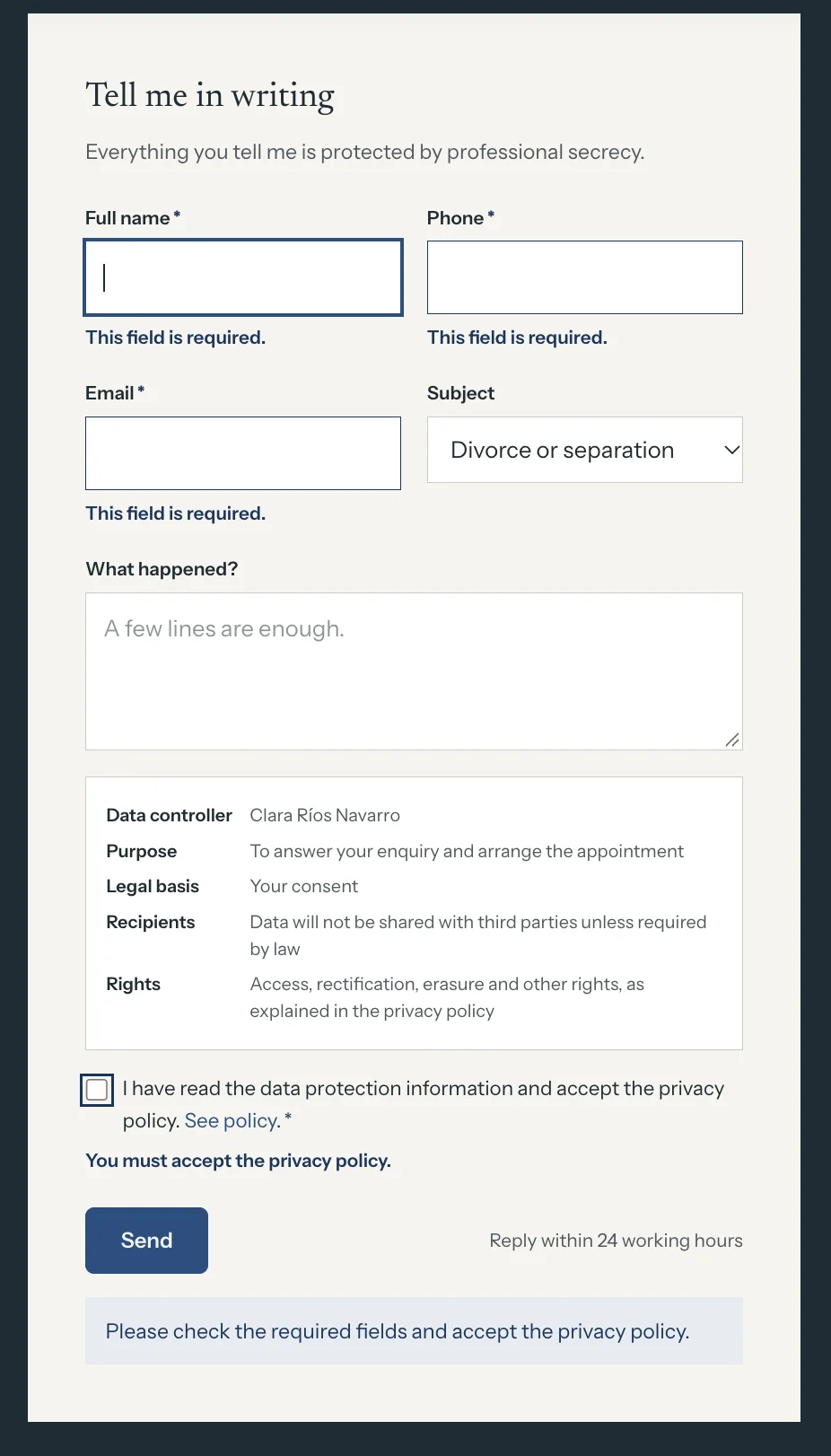
- Contact: Contact details and an intake form with validation, ready to connect your email provider.
- Footer: Logo, contact details, link columns, tax ID and legal links.
- Article pages (list and detail) and legal pages (cookie policy and privacy policy).
- WhatsApp floating button and cookie banner.
- Multi-language with language switcher and
hreflangtags, SEO-friendly setup and modern Astro project structure.
Content Mapping Guide
Each section of the Lawyer Site template is directly linked to a type of content within Content Island.

Getting Started
- Create a new blank project in Content Island (Add Project).
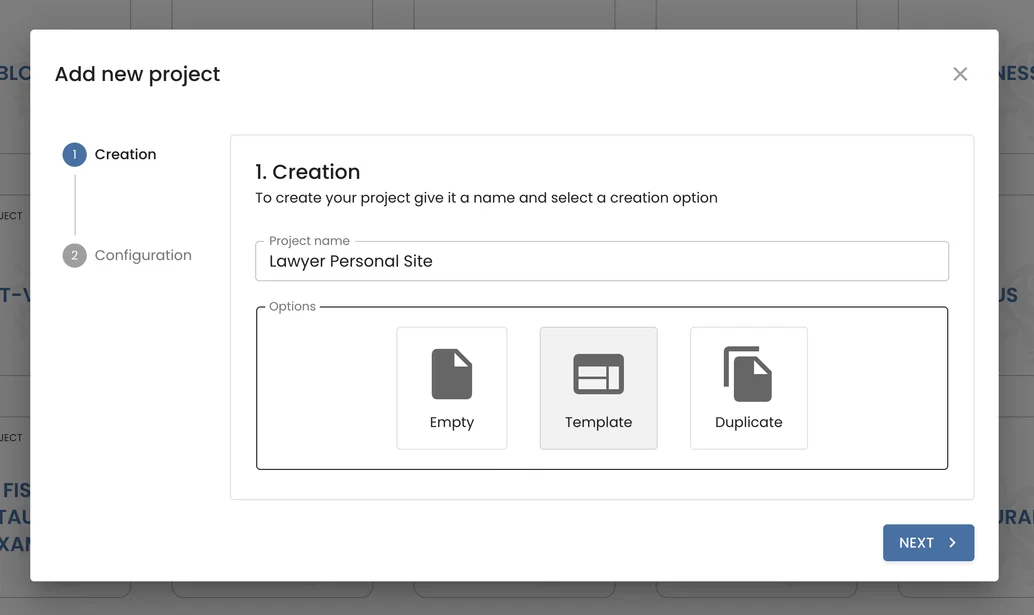
- Choose “Start from a template”.
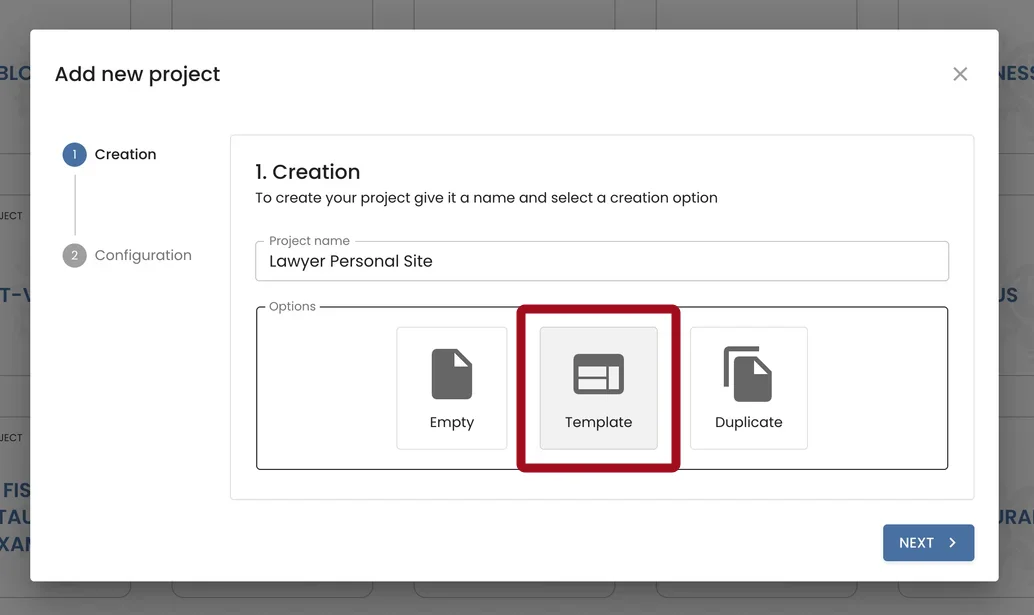
- Select the Lawyer Site template.
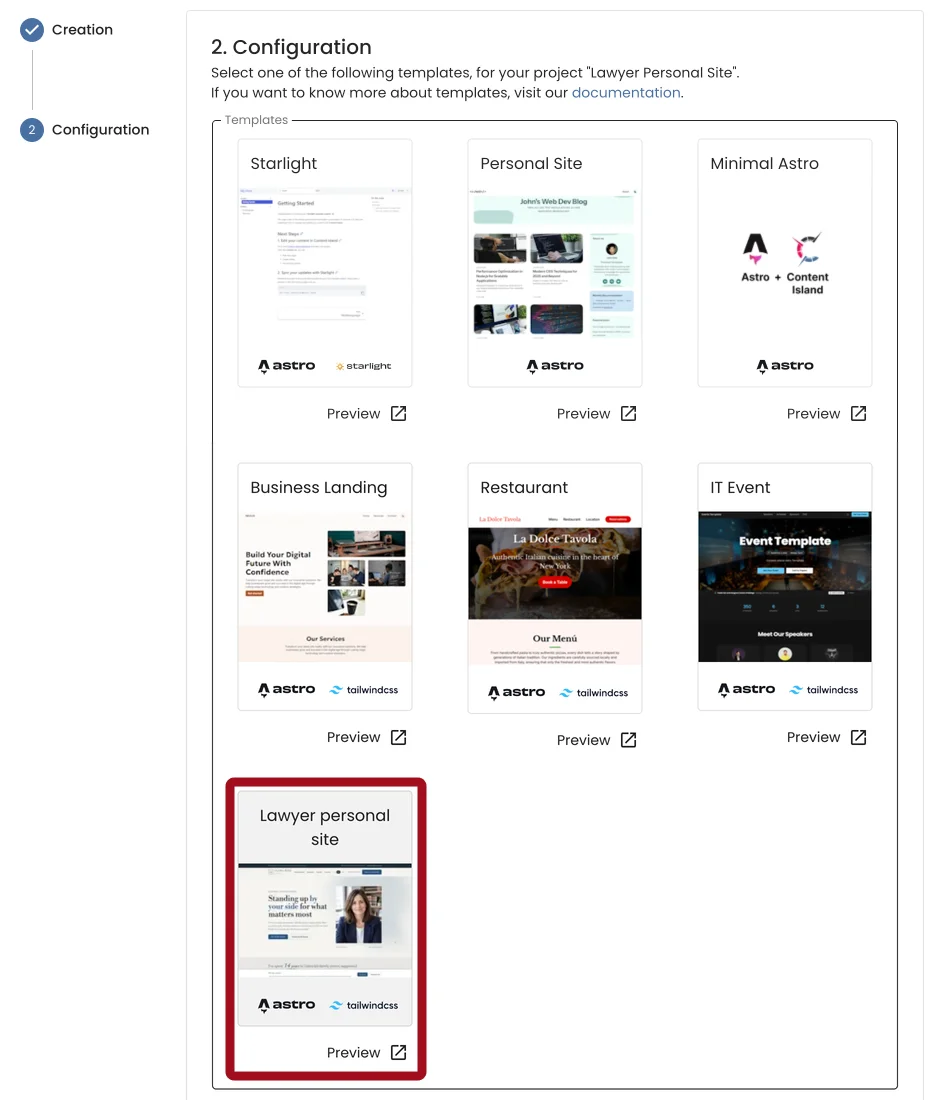
- In the final step (Quick Start), copy the CLI command provided and run it in your terminal.
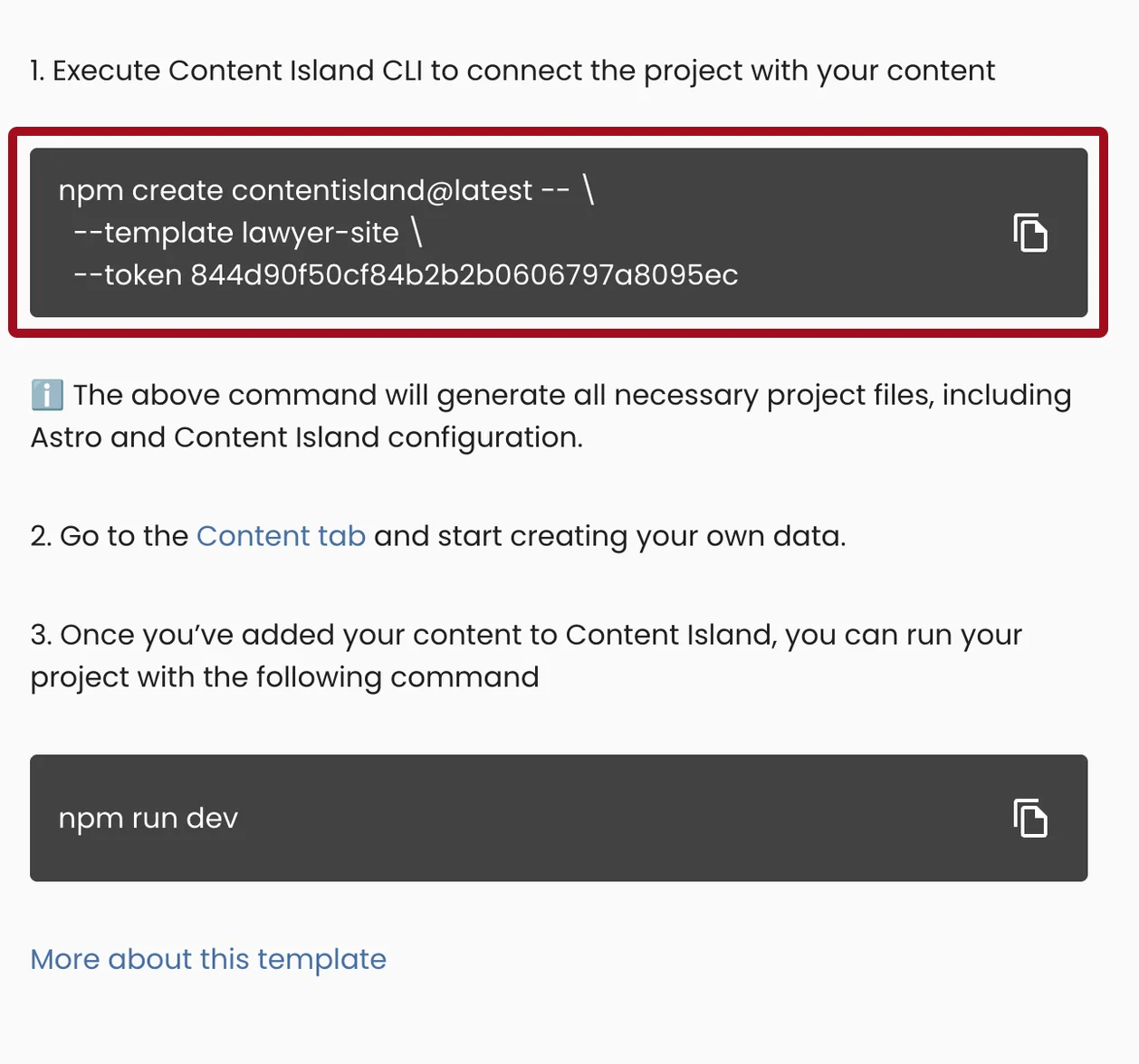
- Once created, run your local server:
npm run devTheming
The Lawyer Site template allows you to change the global colors and typography of the page from Content Island, without needing to touch any code.
To do this, go to the Content section and select the content item called Theme.
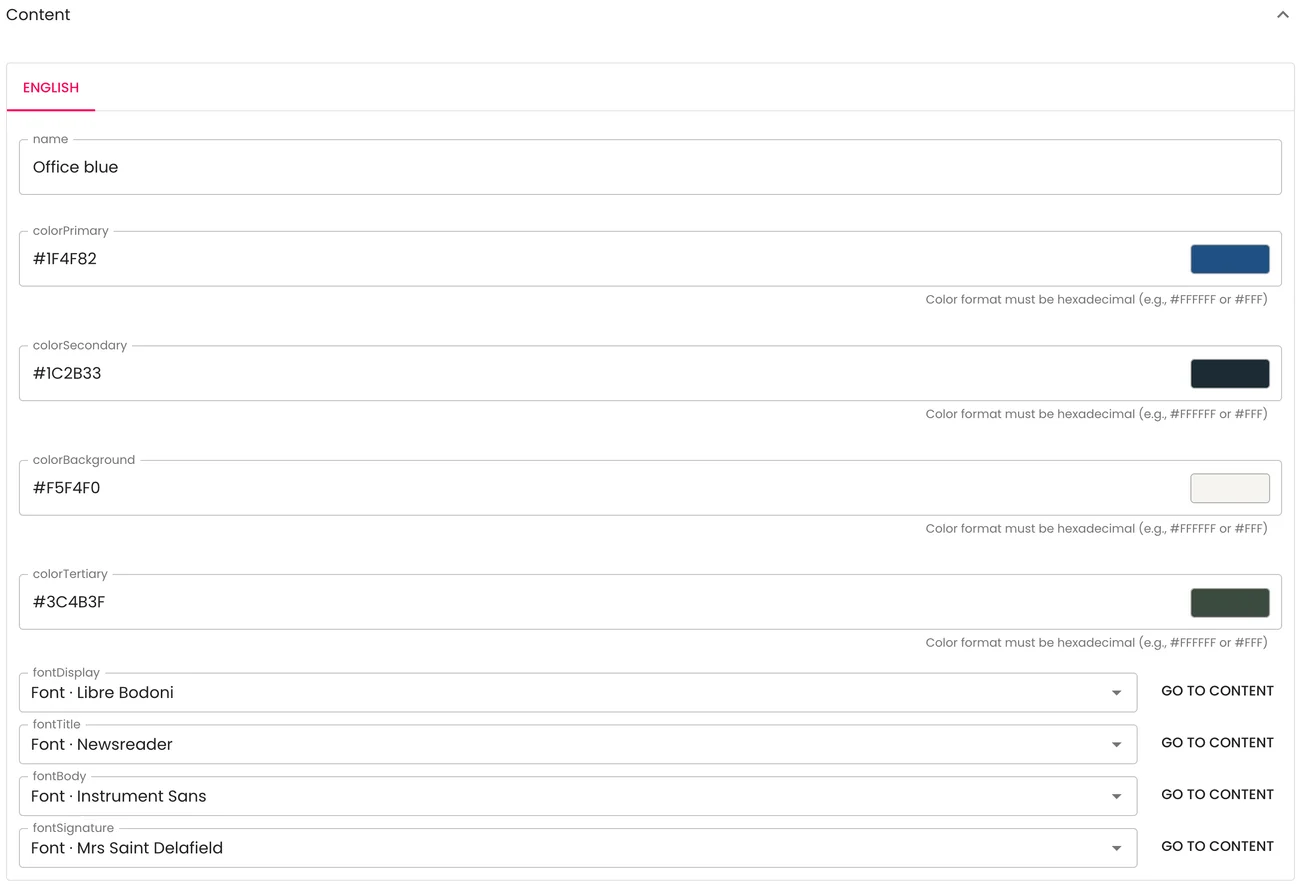
Here you can update the following fields:
- Color Primary: Accent color (buttons, links, highlighted words, etc.).
- Color Secondary: Ink color (text and dark backgrounds).
- Color Background: Background color of the page.
- Color Tertiary: Third color, used in the article covers.
- Font Display: Typeface for the hero headline.
- Font Title: Typeface for headings.
- Font Body: Typeface for body text.
- Font Signature: Handwritten typeface for the signature in the About me section.
Hero Styles
In the Hero content item, the Hero Variant field lets you choose between three styles:
- classic (default): Portrait with a blurred geometric background.
- framed: Color band, offset line frame and a slowly sliding diagonal pattern.
- geometric: Portrait inside a 3×3 grid with geometric pattern tiles.
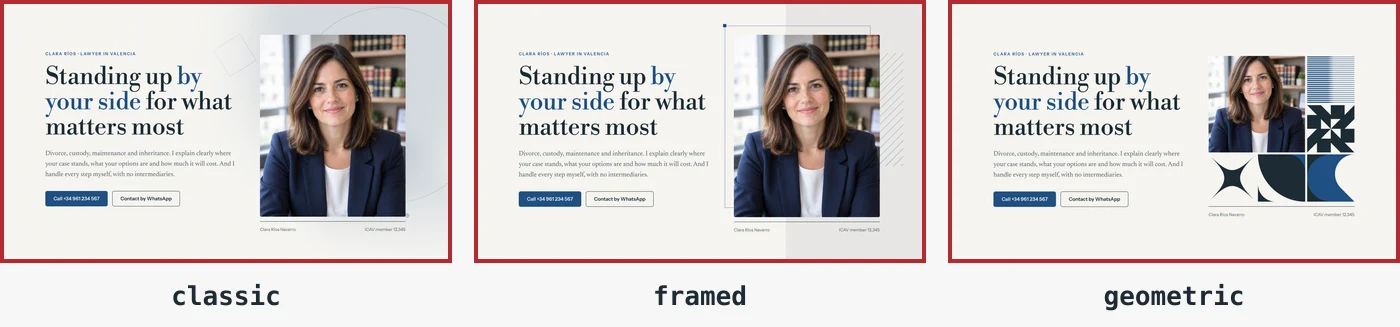
On mobile, all three styles show the portrait as a background photo.
Languages
When you create the project, it only has English. The template also includes all the texts of the site in Spanish (sections, form messages, legal pages…), so you can switch the project language to Spanish, or add it next to English if your plan includes more than one language, and the site will show them in Spanish without translating anything.
The languages of the site are the ones in your Content Island project. The first language in the list is served at the root (/), and the rest with their prefix (/es/, /fr/…).
If you add another language, for example French, add it at the end of the list so the main language and its URLs don’t change, and fill in its content in one of these two ways:
- With Smart Copy: in the Content tab, copy the content from English or Spanish and translate it automatically.
- By hand, entry by entry.
Then rebuild the site.
Contact Form
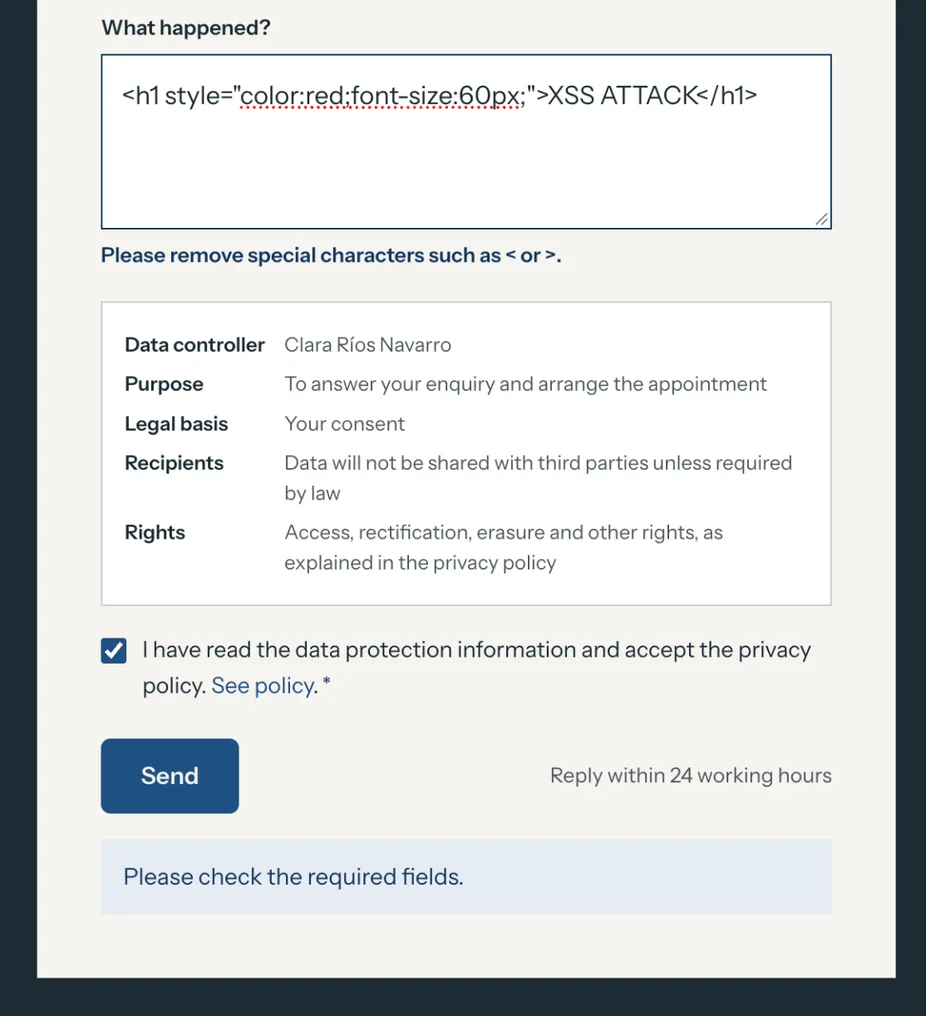
The contact form validates every field before sending (required fields, email and phone format, maximum length and characters that aren’t allowed), with error messages translated from Content Island.
It doesn’t send emails until you connect your email provider. Until then, it shows the message “Set up your email provider to receive emails”. You can find how to connect it in the Contact form section of the template’s README, and a step-by-step example in Astro contact form with Server Actions and Resend.