

Get Started Personal Site — 2. Deploy to Vercel
Deploying on Vercel and Connecting a Webhook
Complete guide to deploy your Astro site on Vercel and automate deployments using Content Island.
Here we will work on two parts:
- Upload your project to GitHub
- Deploy on Vercel + configure automatic webhook
1. Upload to GitHub
Before deploying the project, we need to have it in a remote repository.
1.1 Create the repository
- Go to GitHub and create a repo named
mi-sitio.
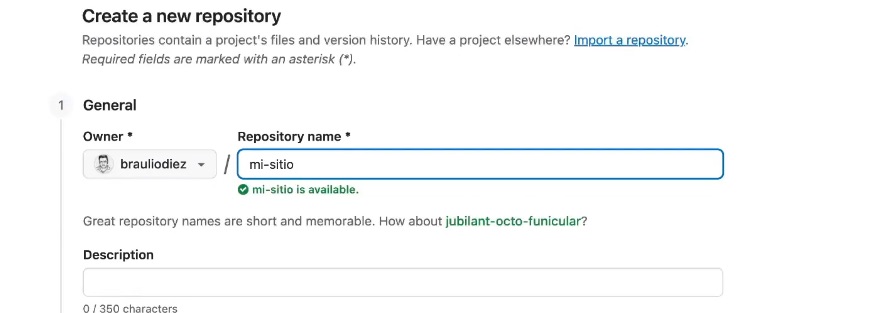
- Copy the repo URL.
1.2 Initialize Git in your local project
In the project folder:
git init
git add .
git commit -m "Uploading my site to GitHub"
1.3 Connect to the remote and push
git remote add origin https://github.com/brauliodiez/mi-sitio.git
git push -u origin main
2. Deploy on Vercel
2.1 Create project on Vercel
- Go to https://vercel.com.
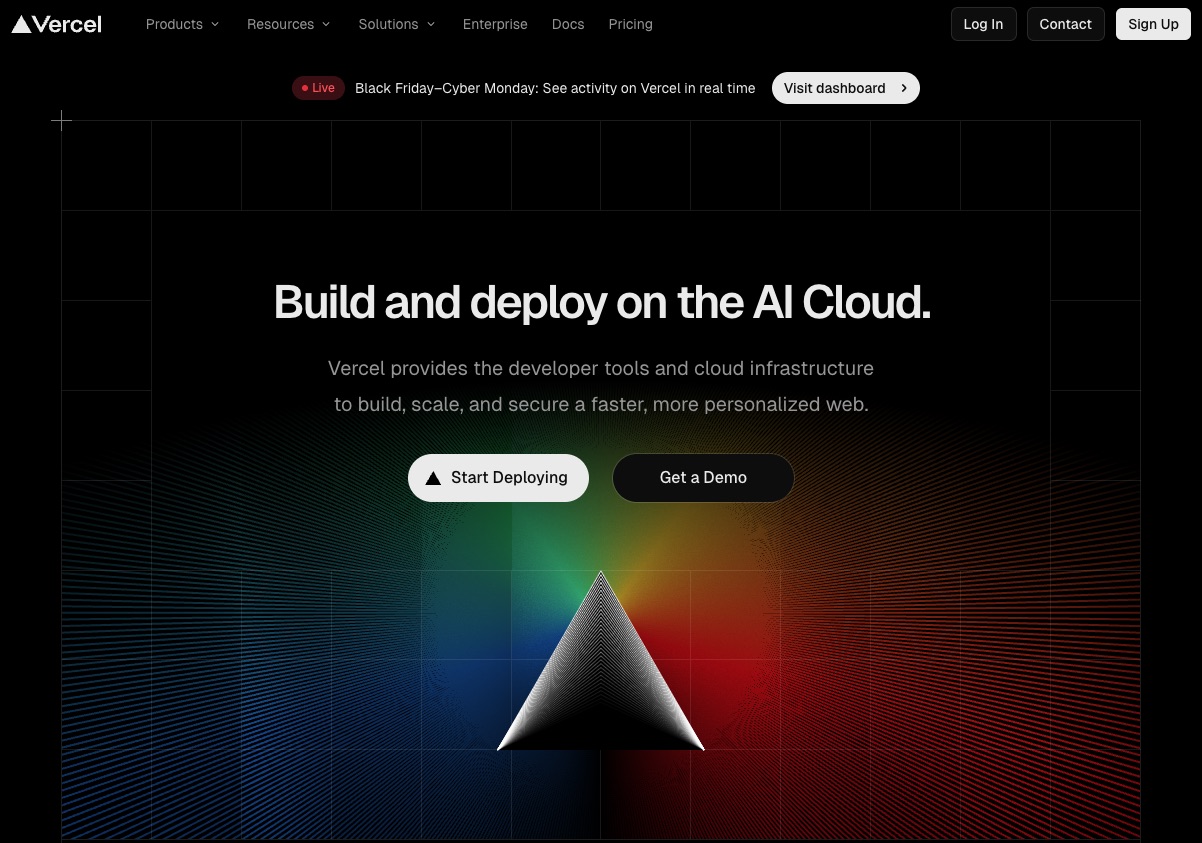
Click New Project.
Select Import Git Repository.
Choose GitHub as the provider.
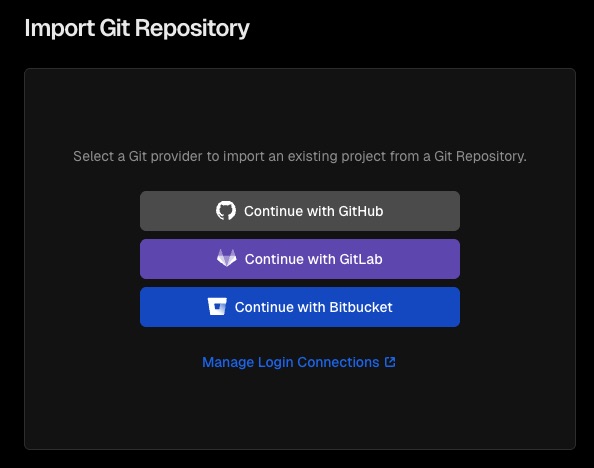
Authorize only the necessary repo (mi-sitio) for security.
Click Import.

2.2 Configure Astro build
Vercel automatically detects Astro:
- Build Command:
astro build - Output Directory:
dist
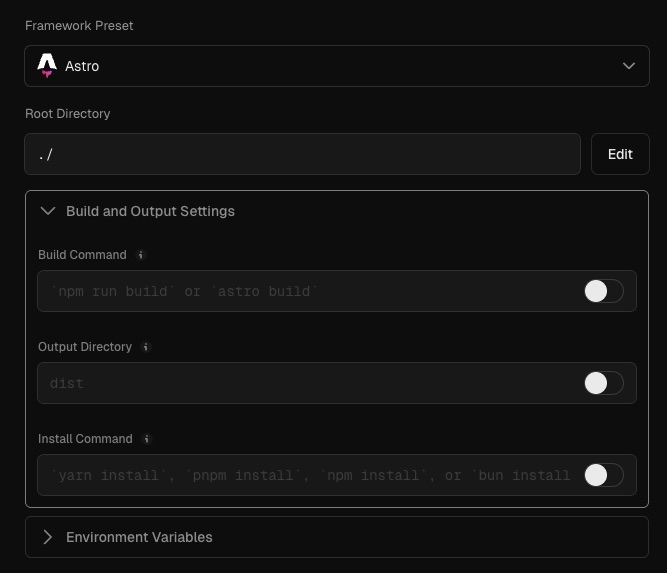
2.3 Add environment variable
We need to give access to Content Island content:
CONTENT_ISLAND_ACCESS_TOKEN=YOUR_API_KEY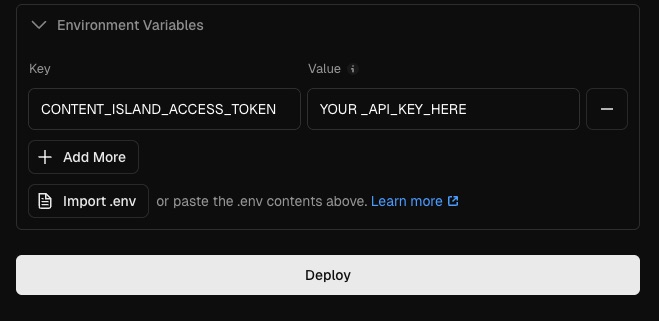
⚠ Never share this token.
2.4 Perform the deployment
- Click Deploy.

Wait a few seconds while Vercel builds the project.
Click Continue to Dashboard.
Upon entering, you will see your site live with a domain like:
mi-sitio.vercel.app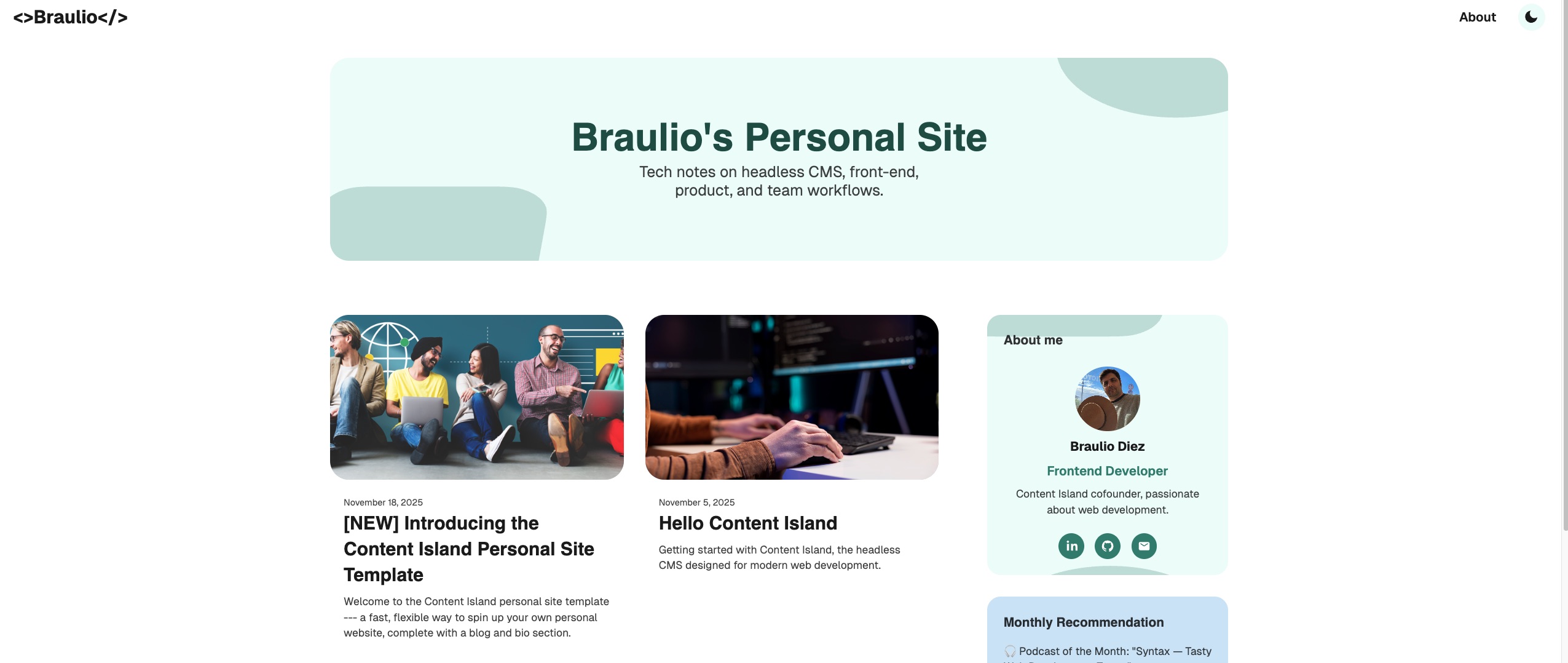
2.5 Custom domains (optional)
Official guide:
https://vercel.com/docs/domains/working-with-domains/add-a-domain
3. Configure a webhook in Content Island (for automatic deployments)
We want that when you publish new content, Vercel deploys automatically.
3.1 Create webhook in Vercel
- Go to the project Dashboard in Vercel.
- Go to settings.
- In the sidebar, open Git.
- Scroll down to Deploy Hooks.
- Create a new hook:
- Name:
Content Island Deploy - Branch:
main
- Name:
Vercel will generate a URL like:
https://api.vercel.com/v1/integrations/deploy/prj_xxxxxx/xxxx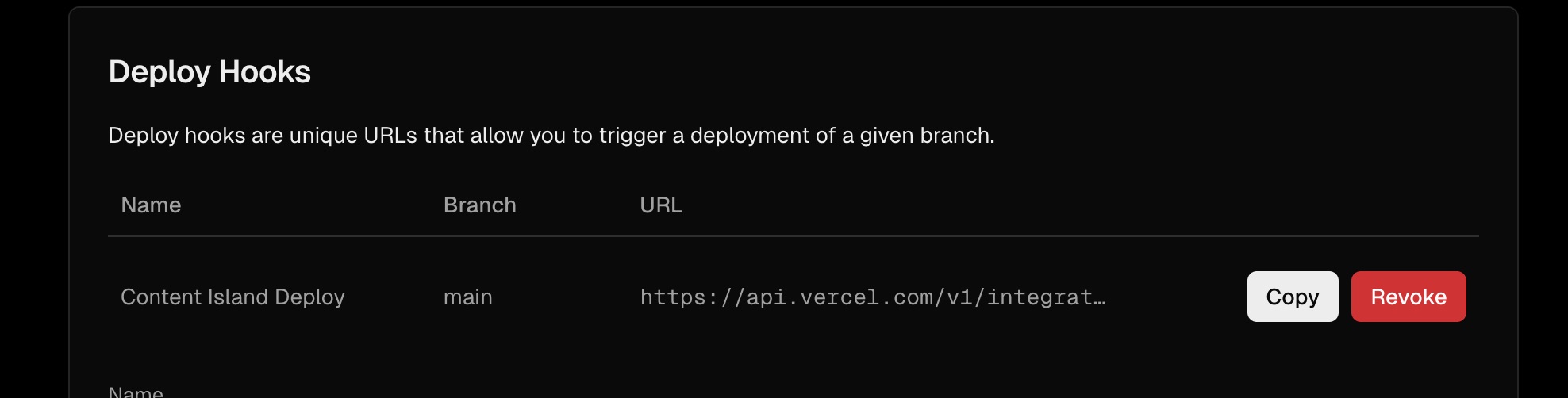
3.2 Configure webhook in Content Island
- In Content Island, enter the project.
- Navigate to Webhooks.
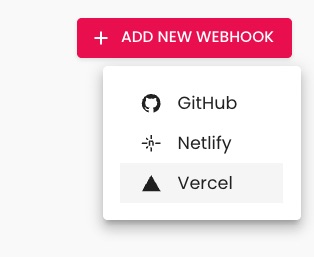
- Create a webhook:
- Name:
Content Island Deploy - Type: Vercel
- URL: paste the URL generated by Vercel.
- Name:
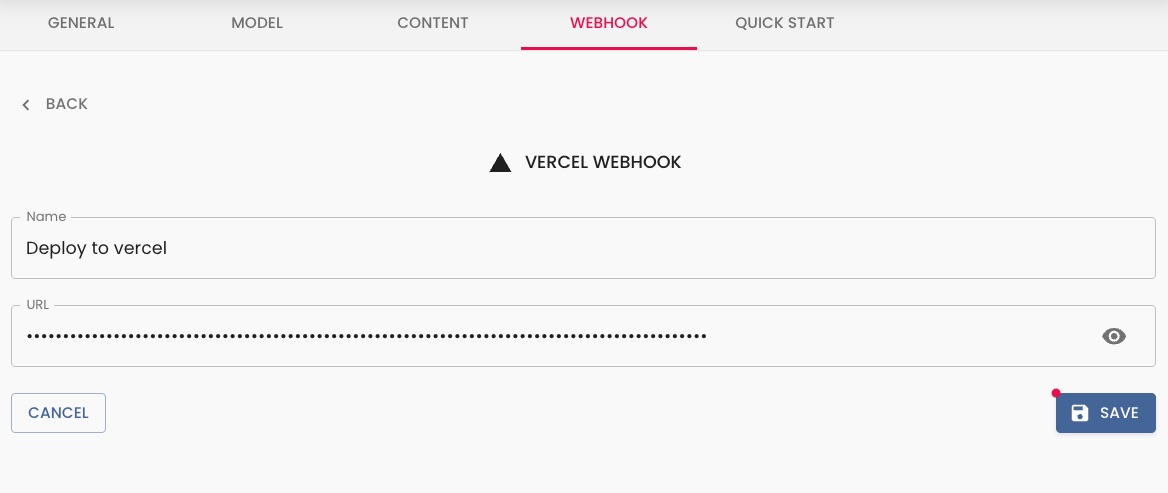
From now on, every time you publish content, Content Island will notify Vercel to rebuild your site.
4. Testing the webhook
- Edit the title of a post.
- Click Publish in Content Island.

Go to the Deployments tab in Vercel.
You will see that a new deployment has started automatically.Wait a few seconds and reload your site:
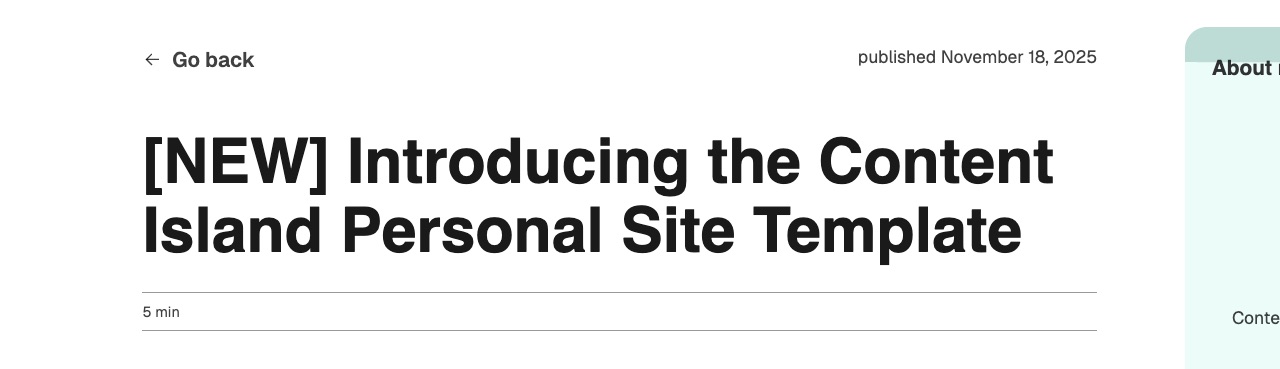
The post change is reflected in production.
🎉 Conclusion
With this you already have:
✔ The project deployed on Vercel
✔ Integration with GitHub
✔ Automatic webhooks to refresh your site
✔ A complete publishing workflow without worrying about deployment
From now on, just focus on creating content! ✨