

Get Started Personal Site Tutorial
Personal Site Template with Content Island + Astro
Complete guide to create your personal blog, customize it, and publish it.
In this template you can:
- Publish your posts
- Show your profile
- Configure the visual appearance
- Translate the content
- Organize the content from Content Island
Let's go step by step.
1. Create the project in Content Island
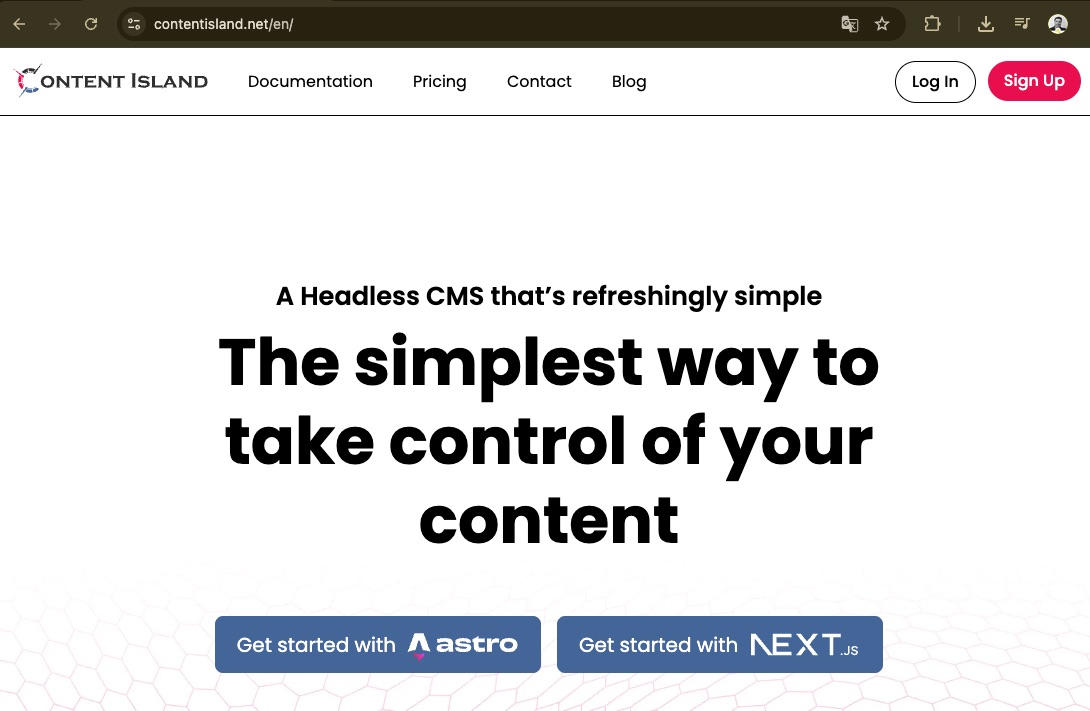
- Access contentisland.net (you can create a free account).
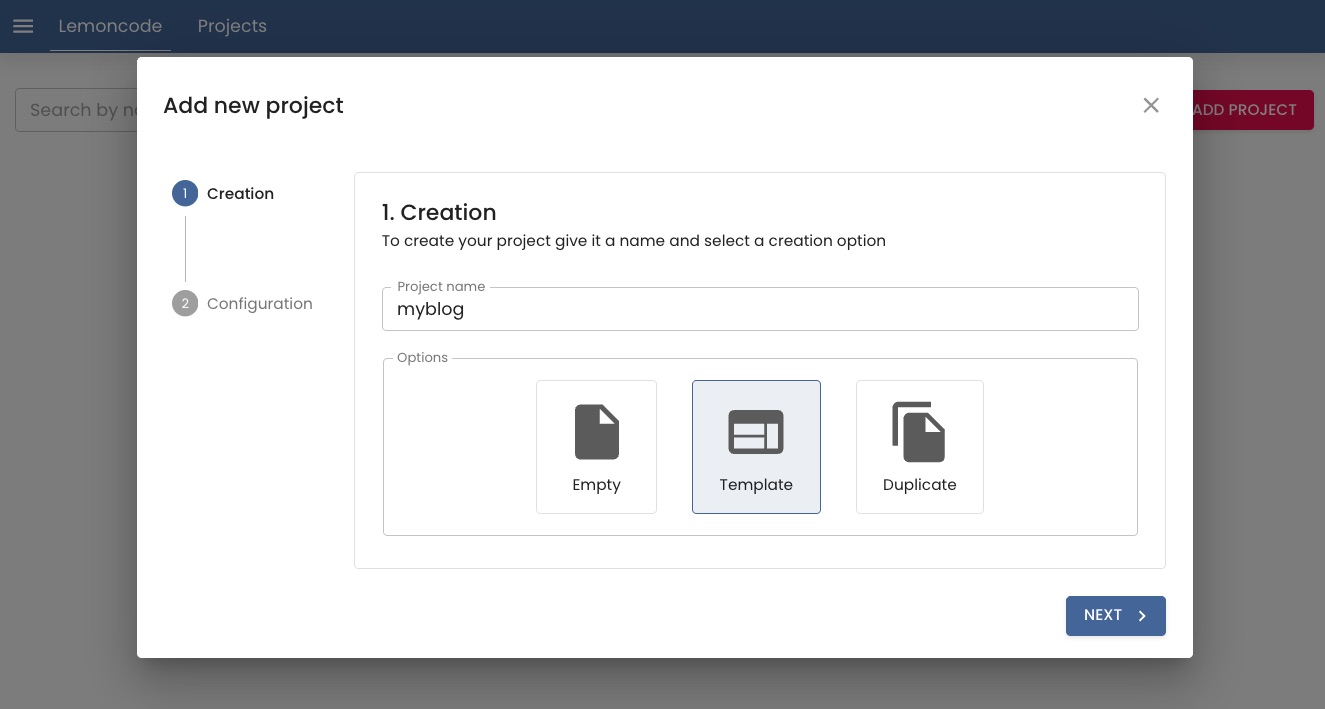
Create a new project called "myblog".
Select that you want to start from a template.
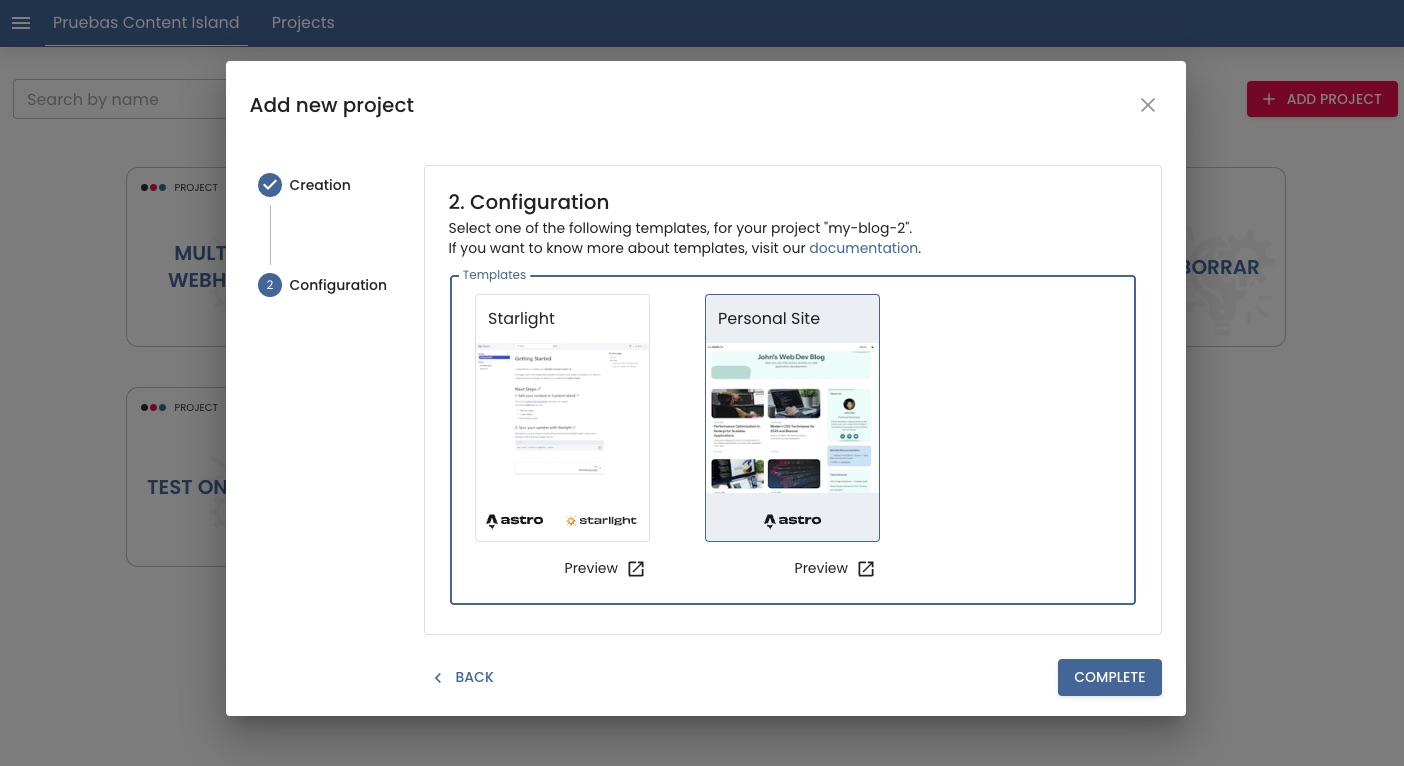
- Choose "Your personal site".
- Once created, the instructions to generate the project locally in VSCode will be shown.
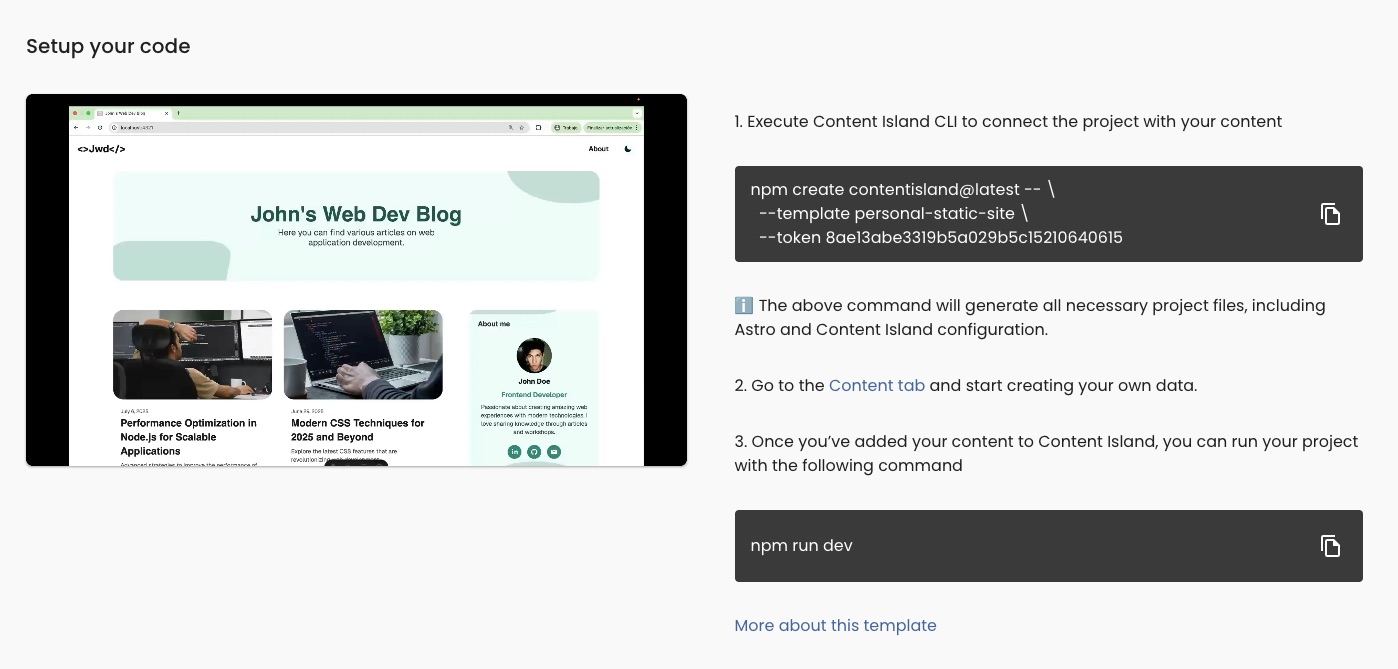
2. Create the Astro project from VSCode
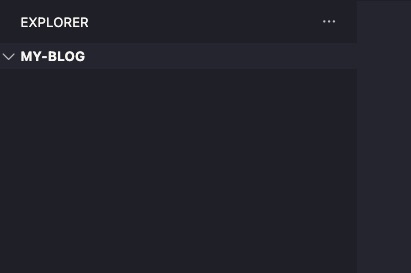
- Open VSCode on the empty project folder.
- Run the Content Island CLI:
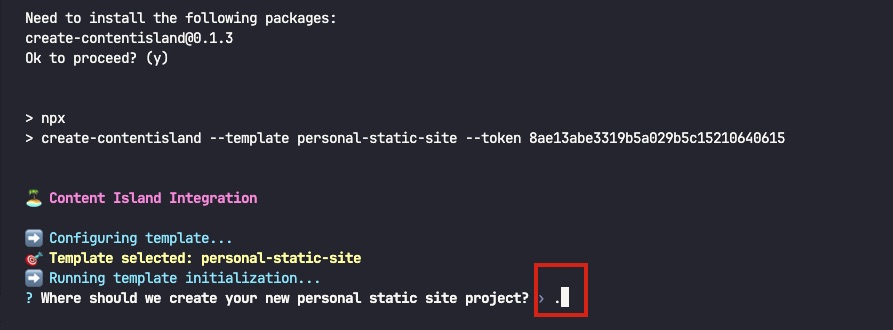
npm create contentisland@latest -- --template personal-static-site --token <add your token here>- When asked for the destination path, type:
.
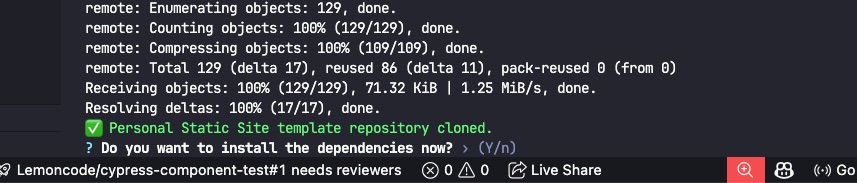
- Select that you want to install dependencies:
- Launch the development server:
npm run dev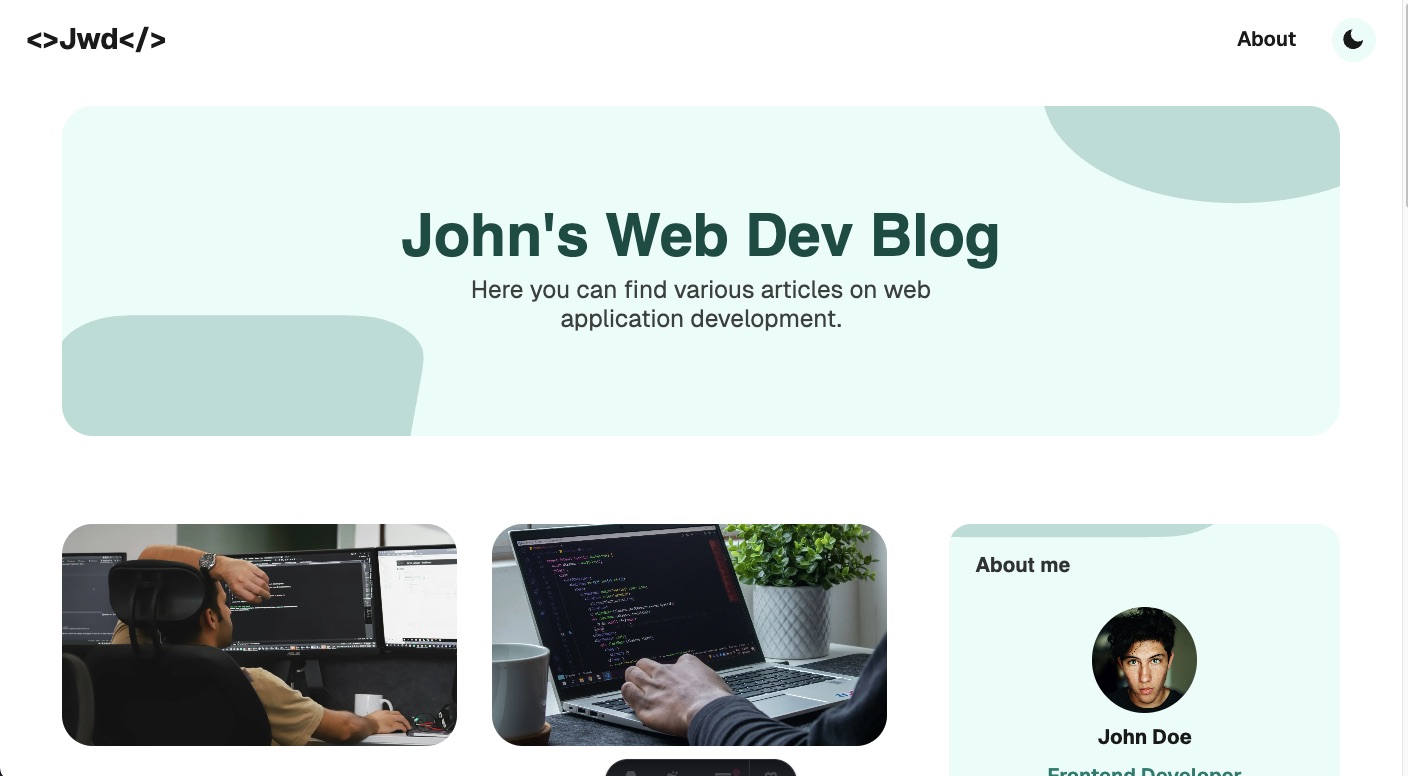
3. Configure languages in Content Island
- In the project panel, go to General.
- Remove English.
- Add Spanish.
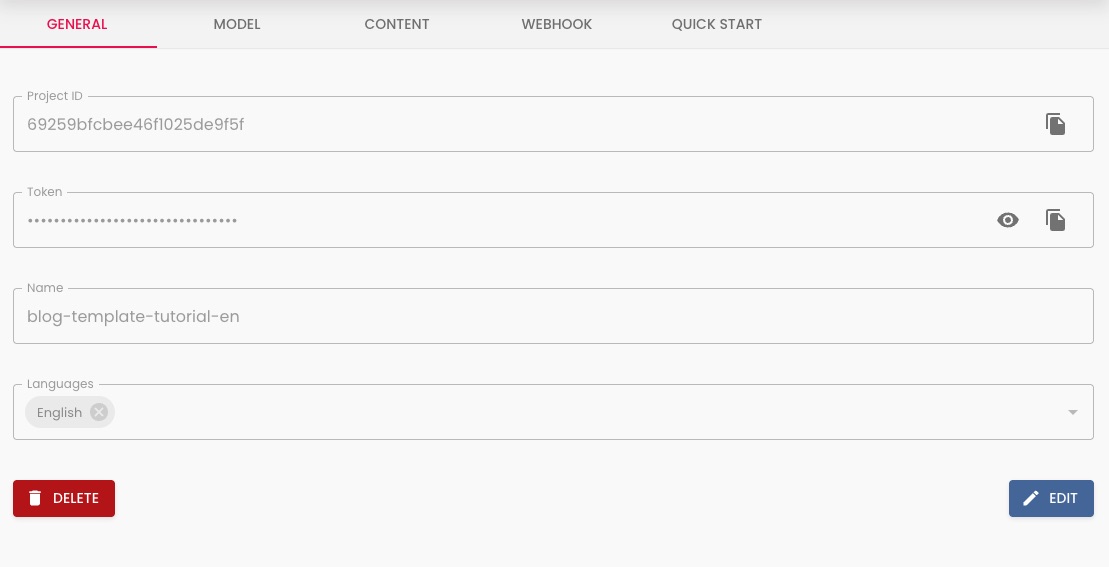
Then go to Content → activate the tree view to work more comfortably.
4. Customize the home page
To see in detail all the sections and editable fields included in the personal site template, visit the official documentation. There you will find updated information where you can see both the sections and the editable fields.
4.1. Header
- Find the header node.
- Modify the logo content:
<>Braulio</>
Note: every time you modify something in Content Island, remember to publish the changes and reload the website to see them reflected.
4.2. MiniBio
Edit the fields:
name
Braulio Diezrole
Founder and Developerdescription
Co-founder of Content Island and I like web development.image
Here we add a custom image.
image alt
Photo of Braulio Diez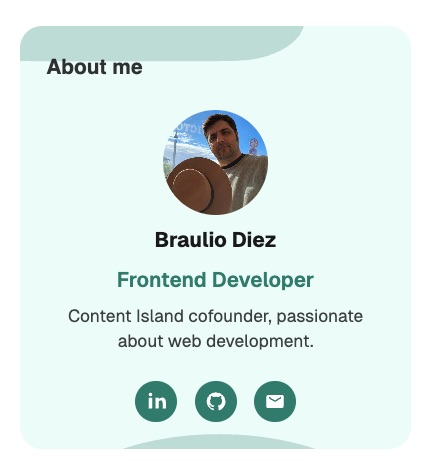
Note: every time you modify something in Content Island, remember to publish the changes and reload the website to see them reflected.
4.4. Contact Section
Update the links:
Add your LinkedIn link hereGitHub
Add your GitHub link heremailto: <add your email here>
Note: every time you modify something in Content Island, remember to publish the changes and reload the website to see them reflected.
4.5. Hero Home Section
Filter by HeroHome and complete:
title
Braulio's sitedescription
Technical posts about headless CMS, front-end, product, and team workflows.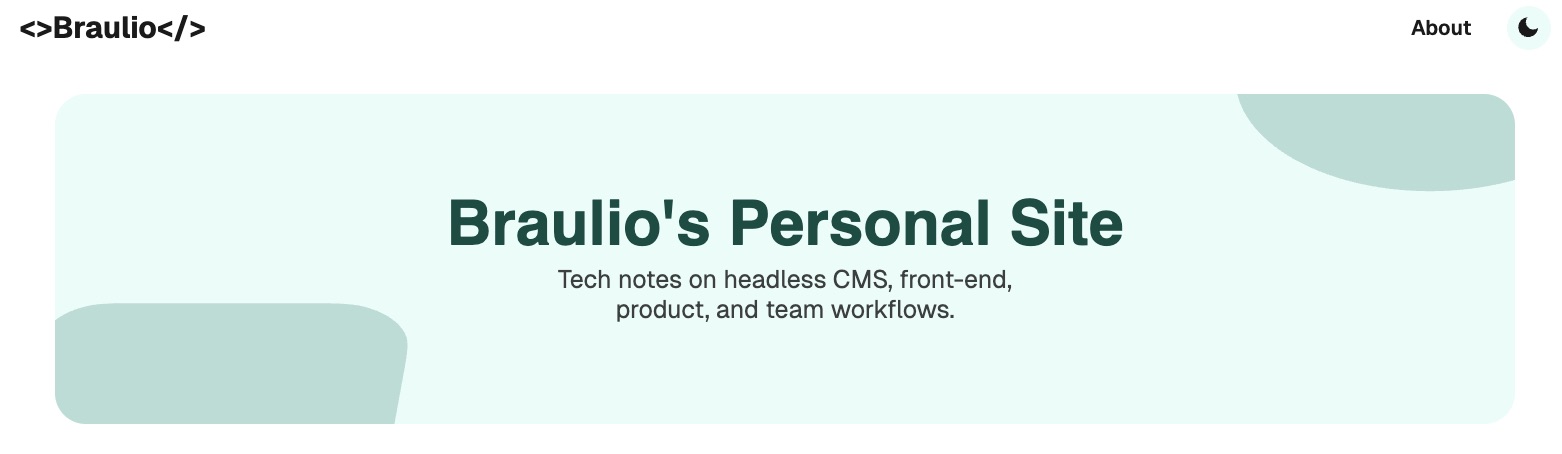
Note: every time you modify something in Content Island, remember to publish the changes and reload the website to see them reflected.
4.6. Monthly Recommendation
Now go to Recommendations/Monthly Recommendation.
Complete:
description
🏝️ Content Island blog contentisland.netlinkLabel
contentisland.neturl
https://contentisland.net/en/blog/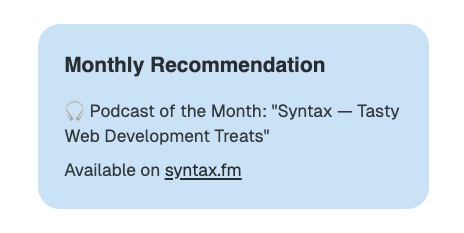
Note: every time you modify something in Content Island, remember to publish the changes and reload the website to see them reflected.
4.7. Featured posts
For now, leave it empty. It will be filled later when we have created posts.
Note: every time you modify something in Content Island, remember to publish the changes and reload the website to see them reflected.
4.8. CTA (Call to Action)
Title
What topics would you like me to write about?Description
I am preparing new posts, is there any topic you would like me to cover?DescriptionTwo
Send me a message with your suggestions: braulio.diez@lemoncode.net
Note: every time you modify something in Content Island, remember to publish the changes and reload the website to see them reflected.
4.9. Footer
Update:
<>Braulio</>
Note: every time you modify something in Content Island, remember to publish the changes and reload the website to see them reflected.
5. Manage blog posts
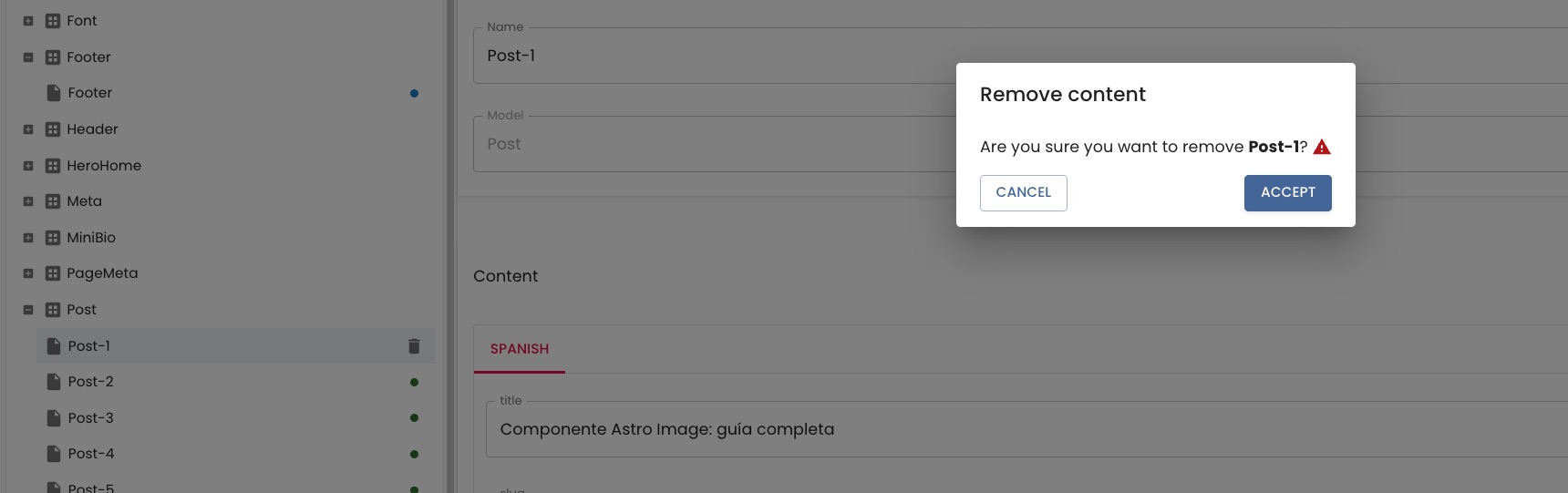
- In Content Island, locate Posts.
- Delete all existing ones.
5.1. Post 1
Name
Introducing the Content Island personal site templatetitle
Introducing the Content Island personal site templateslug
introducing-the-content-island-personal-site-templatesummary
Welcome to the Content Island personal site template --- a fast and flexible way to create your own personal website, complete with a blog and biography section.read time
5 mincontent
# Introducing the Content Island Personal Site Template

We have just published the **Content Island personal site template** --- a
fast and flexible way to create your own personal site, complete with
a blog and a biography section.

This template is built with **Astro** and powered by **Content
Island** as the headless CMS, making it incredibly
easy to edit, customize, and scale your content.

<Add an image here>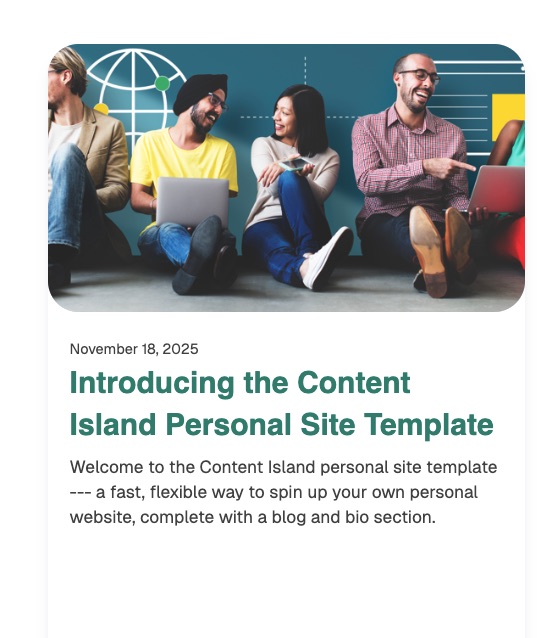
Note: every time you modify something in Content Island, remember to publish the changes and reload the website to see them reflected.
5.2. Post 2
Name
Hello Content Islandtitle
Hello Content Islandslug
hello-content-islandsummary
First steps with Content Island, a simple and practical Headless CMSread time
8 mincontent
# Introducing the VS Code Extension for Content Island

Developers spend most of the day inside **Visual
Studio Code** --- writing, refactoring, structuring, and shaping the backbone of their projects. So, when it comes
to editing Markdown or MDX content stored in **Content Island**,
constantly switching between the browser and the editor can break your
flow.

We wanted to solve that.

Today we present the **VS Code Extension for
Content Island**, a simple but powerful bridge between your content space and your favorite editor.

## Why Bring Content Island to VS Code?

Because your content is part of your codebase.

Whether you maintain a documentation site, edit product guides,
iterate on MDX components, or collaborate with your team, having your
content available _directly inside the editor_ is a huge
productivity boost.

No more copy-pasting.\
No more searching for files.\
No more switching tabs.

Just open, edit, and push --- all in the same place where you already think
and build.

## How It Works

The extension adds a smooth workflow between Content Island and VS
Code.

### 🔗 Open Markdown and MDX Fields From Content Island

Any field stored as Markdown or MDX now shows a **VS Code icon**. Click, authorize the connection once, and the document will open instantly in VS Code.

### ✏️ Edit with Full Editor Power

Use your favorite theme, plugins, snippets, Copilot, shortcuts --- the entire editing experience you already master.

### 🚀 Push Changes Back to Content Island

When you finish editing, press **Push** from the command palette
or sidebar. Content Island detects the change and updates the
field automatically.

### 📚 Optional Sidebar for Frequent Documents

Pin frequently used documents, get the latest version,
push updates, and organize your workflow from a dedicated sidebar.

It feels natural because _it is_ natural.

## Designed for Developer Flow

We built this extension with a simple goal: **keep you in your zone**.

Instead of interrupting your mental process to navigate interfaces,
you can jump straight to content, make the update, and keep
coding.

It's small, focused, and intentionally minimalist --- just enough
to make your life easier without overloading your editor.

## When Will You Use It?

- Update documentation inside your repository\
- Edit MDX components with instant preview\
- Make small content tweaks during development\
- Collaborate with teammates working between both tools\
- Keep everything synced without opening extra tabs

If your workflow touches Markdown or MDX, this extension quickly becomes
second nature.

## To Wrap Up

The VS Code Extension is our way to make Content Island even more
connected with your daily workflow.\
It keeps your content close, your tools unified, and your editing process seamless.

We hope it makes your work a bit smoother --- and a bit more
enjoyable.

**Try it and tell us how it fits your flow.**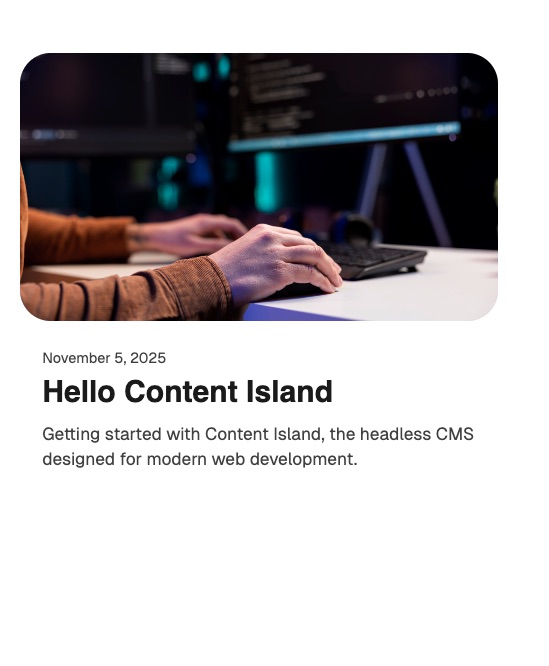
Note: every time you modify something in Content Island, remember to publish the changes and reload the website to see them reflected.
6. Add Featured Posts
Now that posts exist:
- Open the Featured Posts section.
- Add the two created posts.
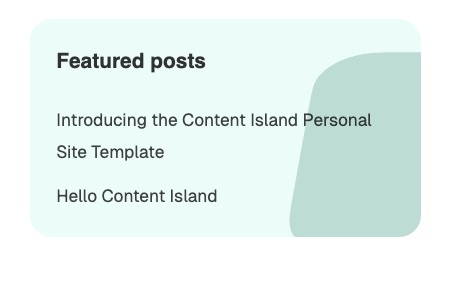
Note: every time you modify something in Content Island, remember to publish the changes and reload the website to see them reflected.
7. Customize the “About” page
7.1. Tool section
Open toolCollection, and remove the following technologies:
- .NET
- Git
- SQL Server
Keep:
- React
- HTML
- JavaScript
- TypeScript
Add (with SVG icon):
- Astro
- Content Island
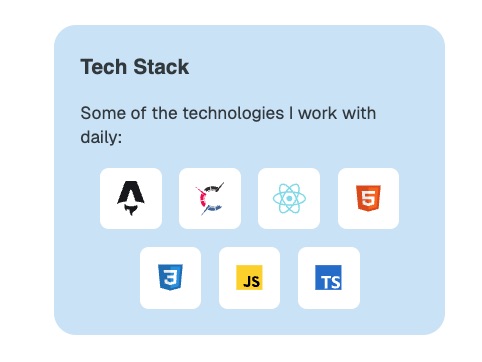
Note: every time you modify something in Content Island, remember to publish the changes and reload the website to see them reflected.
7.2. Contact section
description:
Do you have questions about Content Island or using a headless CMS?
Are you thinking about starting a new project?
Get in touch and let's see how I can help.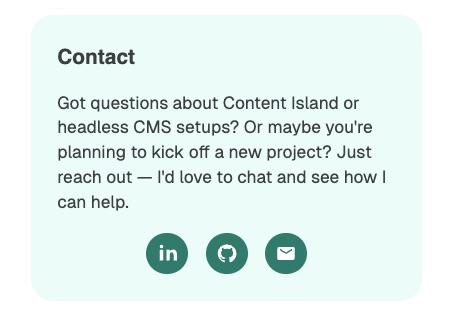
Note: every time you modify something in Content Island, remember to publish the changes and reload the website to see them reflected.
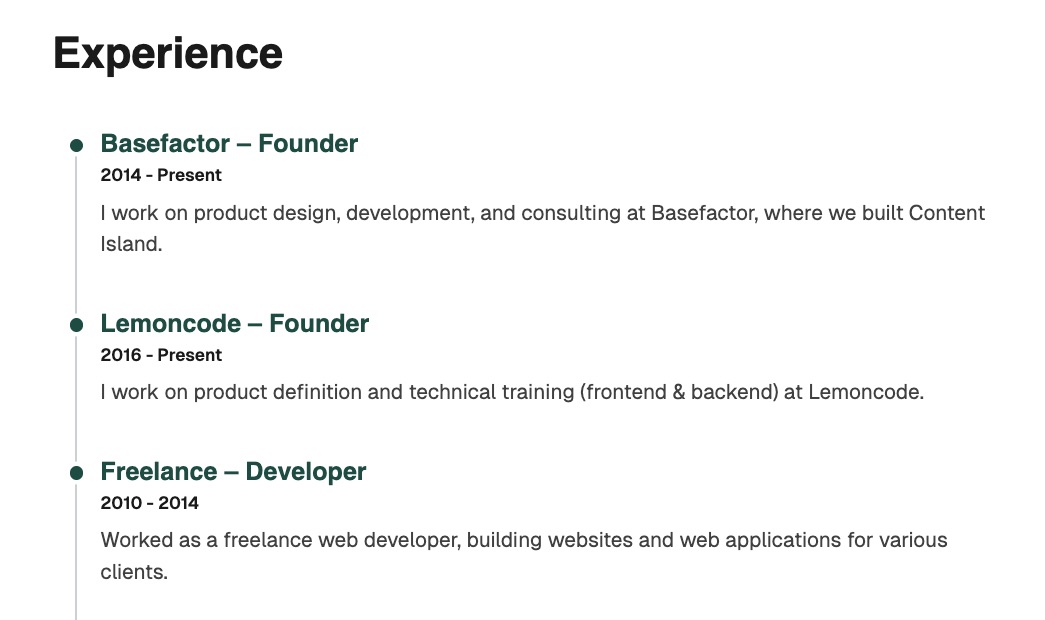
7.3. Experience Section
Delete all experiences.
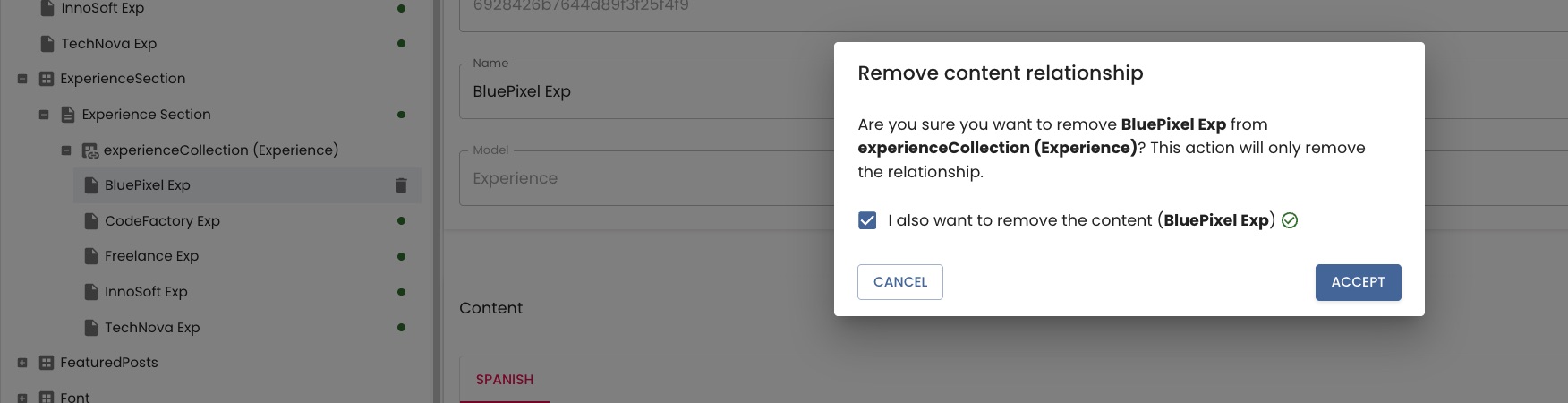
Let's add the new ones:
1. Basefactor
Name
Basefactorcompany
Basefactorrole
Founderperiod
2014 - presentdescription
I work in product design, development, and consulting at Basefactor, we are the creators of Content Island.Add all your work experiences.
Note: every time you modify something in Content Island, remember to publish the changes and reload the website to see them reflected.
8. Page Meta (SEO)
homeTitle
Braulio's BloghomeDescription
Technical posts about headless CMS, front-end, product, and team workflows.About Description
More information about Braulio and his experienceAbout Title
About - Braulio's BlogNote: every time you modify something in Content Island, remember to publish the changes and reload the website to see them reflected.
9. Theme
Change colors:
Primary
#265887Secondary
#A12D55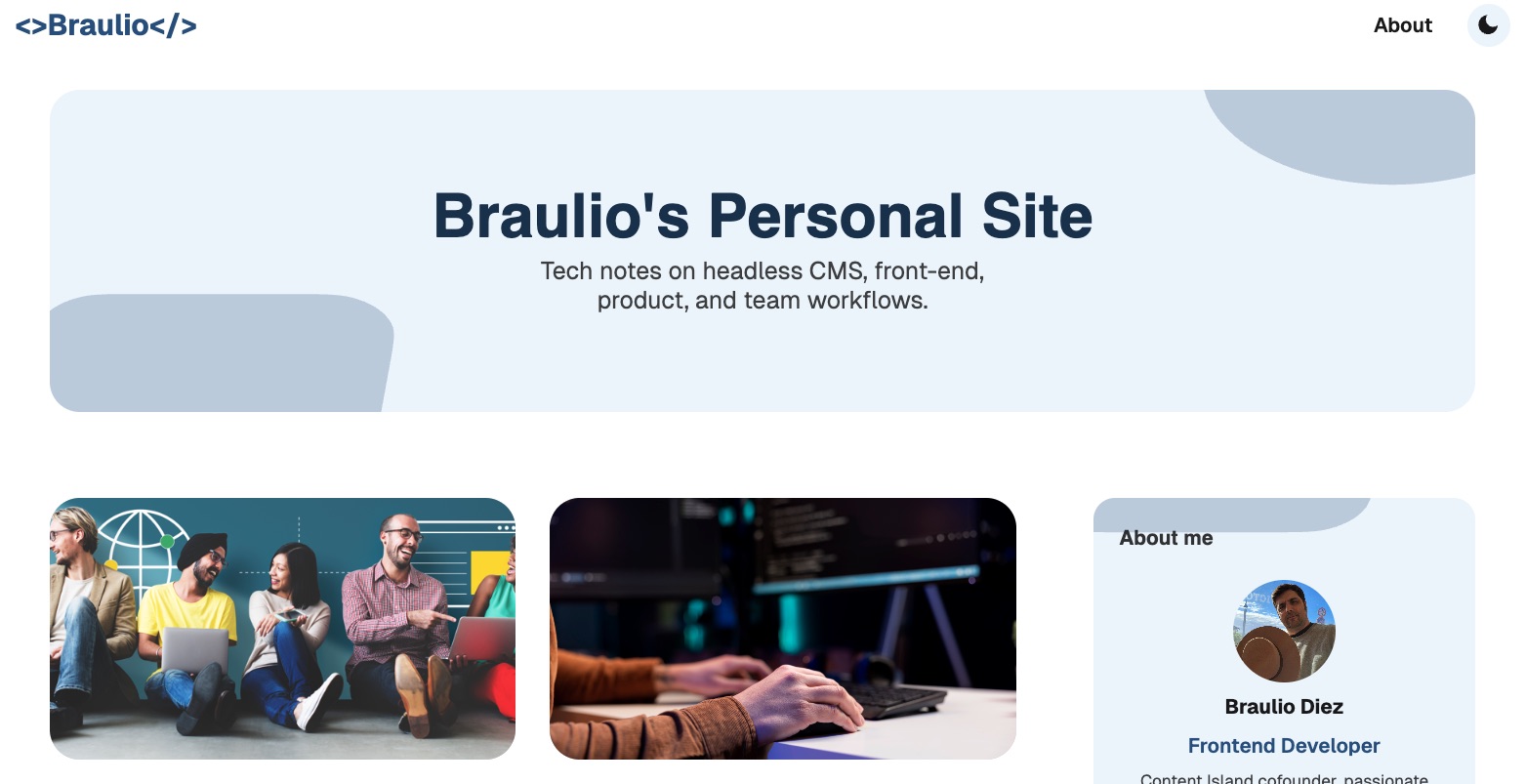
Note: every time you modify something in Content Island, remember to publish the changes and reload the website to see them reflected.
10. Automatic deployment
You can now connect Content Island via a webhook to your cloud provider (Vercel, Netlify…) so that new content triggers an automatic deployment.
🎉 Done!
Your personal site is created, customized, and ready to keep adding content.