

Get Started Personal Site — 2. Desplegar a vercel
Desplegando en Vercel y conectando un webhook
Guía completa para desplegar tu sitio de Astro en Vercel y automatizar despliegues usando Content Island.
Aquí trabajaremos dos partes:
- Subir tu proyecto a GitHub
- Desplegar en Vercel + configurar webhook automático
1. Subida a GitHub
Antes de desplegar el proyecto, necesitamos tenerlo en un repositorio remoto.
1.1 Crear el repositorio
- Ve a GitHub y crea un repo llamado
mi-sitio.
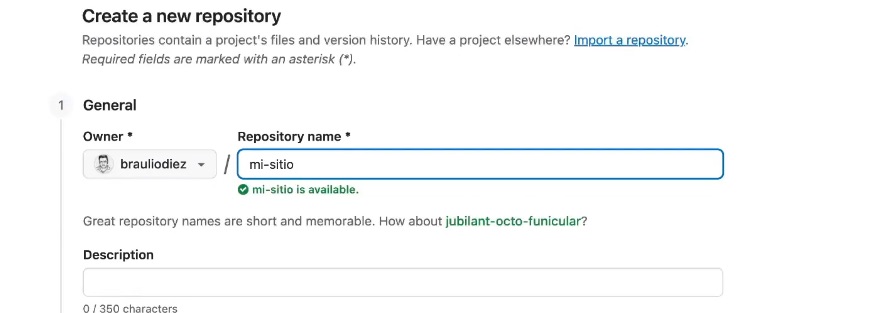
- Copia la URL del repo.
1.2 Inicializar Git en tu proyecto local
En la carpeta del proyecto:
git init
git add .
git commit -m "Subiendo mi sitio a GitHub"
1.3 Conectar con el remoto y hacer push
git remote add origin https://github.com/brauliodiez/mi-sitio.git
git push -u origin main
2. Desplegar en Vercel
2.1 Crear proyecto en Vercel
- Entra en https://vercel.com.
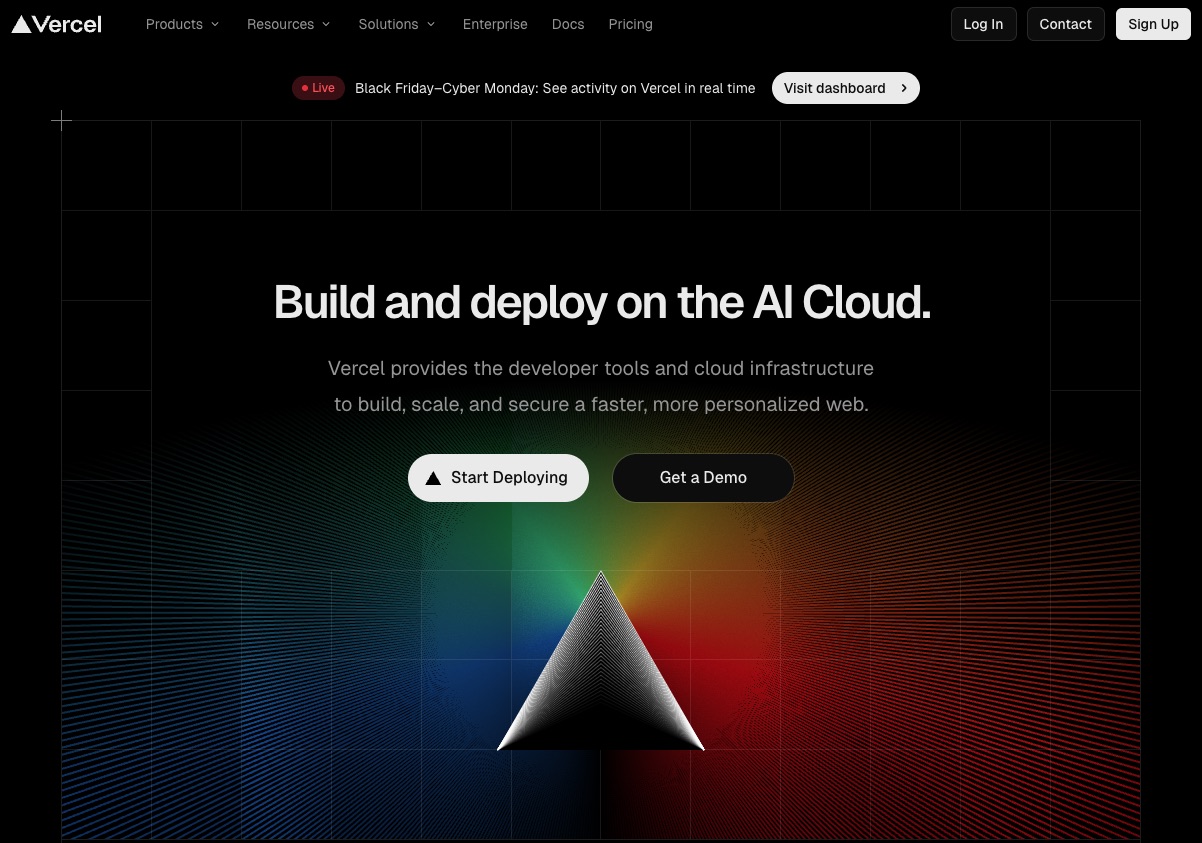
Pulsa New Project.
Selecciona Import Git Repository.
Elige GitHub como proveedor.
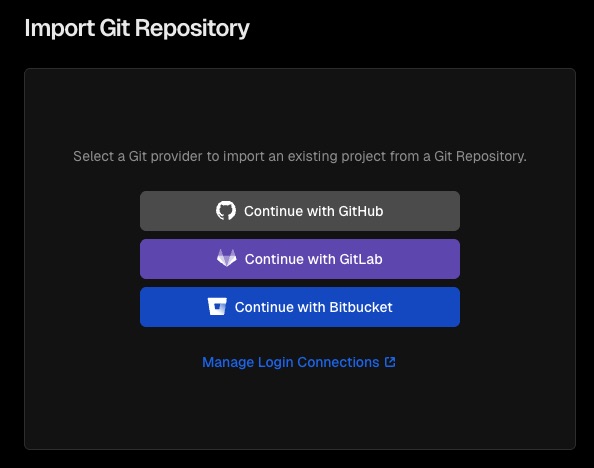
Autoriza solo el repo necesario (mi-sitio) por seguridad.
Pulsa Import.

2.2 Configurar build de Astro
Vercel detecta automáticamente Astro:
- Build Command:
astro build - Output Directory:
dist
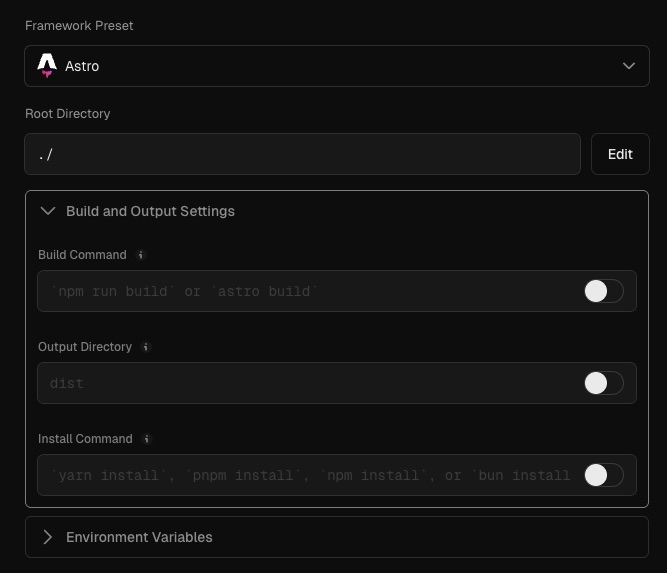
2.3 Añadir variable de entorno
Necesitamos darle acceso al contenido de Content Island:
CONTENT_ISLAND_ACCESS_TOKEN=TU_API_KEY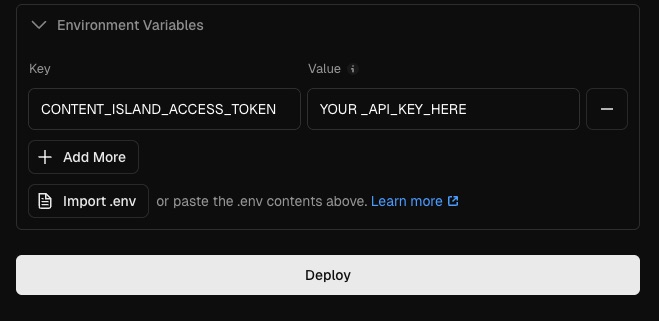
⚠ Nunca compartas este token.
2.4 Realizar el despliegue
- Pulsa Deploy.

Espera unos segundos mientras Vercel construye el proyecto.
Pulsa Continue to Dashboard.
Al entrar verás tu sitio live con un dominio tipo:
mi-sitio.vercel.app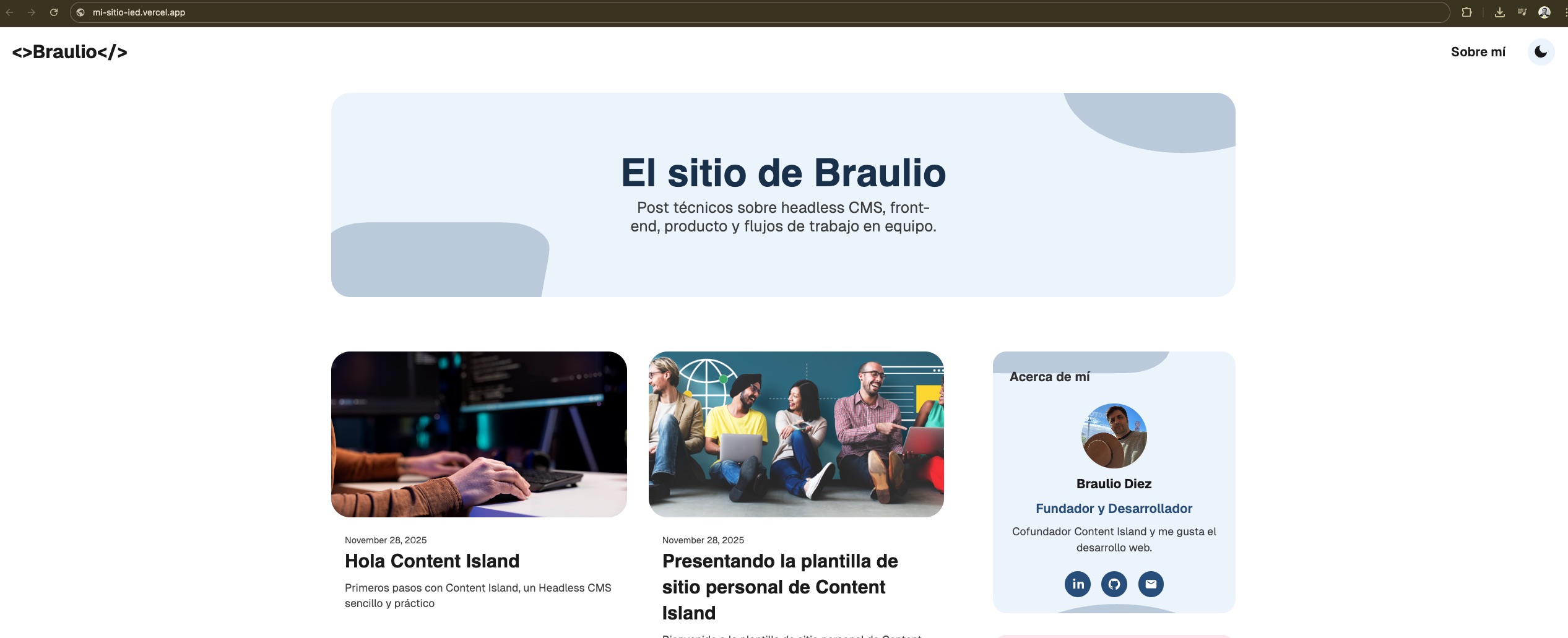
2.5 Dominios personalizados (opcional)
Guía oficial:
https://vercel.com/docs/domains/working-with-domains/add-a-domain
3. Configurar un webhook en Content Island (para despliegues automáticos)
Queremos que cuando publiques nuevo contenido, Vercel despliegue automáticamente.
3.1 Crear webhook en Vercel
- Ve al Dashboard del proyecto en Vercel.
- Ve a settings.
- En el sidebar, abre Git.
- Baja hasta Deploy Hooks.
- Crea un nuevo hook:
- Nombre:
Content Island Deploy - Branch:
main
- Nombre:
Vercel generará una URL del tipo:
https://api.vercel.com/v1/integrations/deploy/prj_xxxxxx/xxxx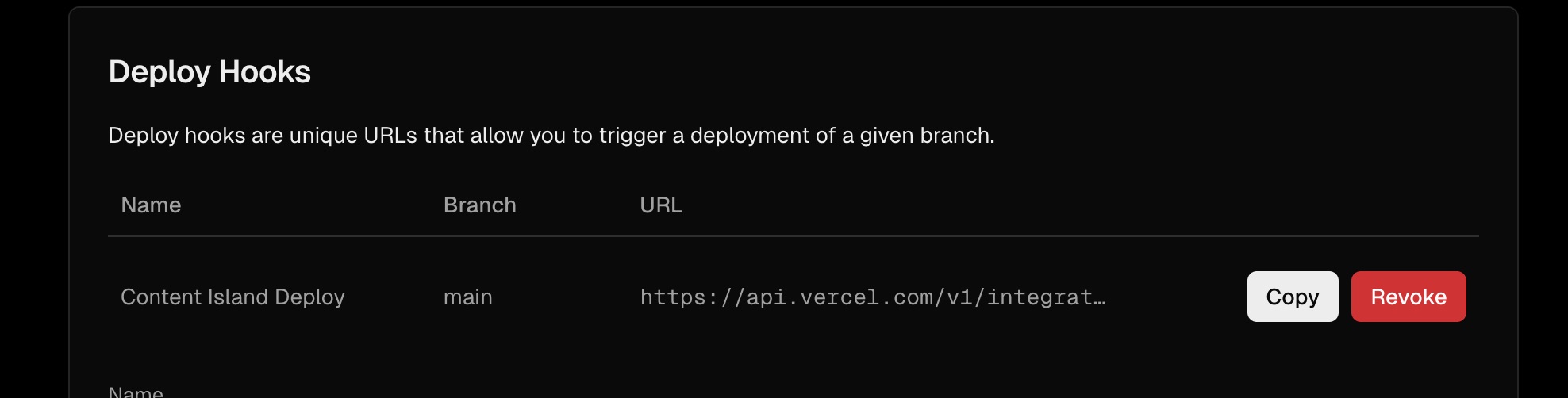
3.2 Configurar webhook en Content Island
- En Content Island, entra al proyecto.
- Navega a Webhooks.
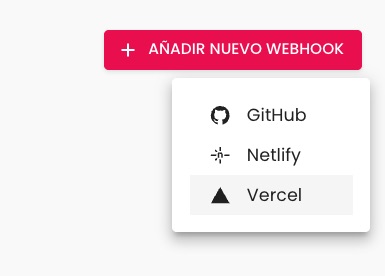
- Crea un webhook:
- Nombre:
Content Island Deploy - Tipo: Vercel
- URL: pega la URL generada por Vercel.
- Nombre:
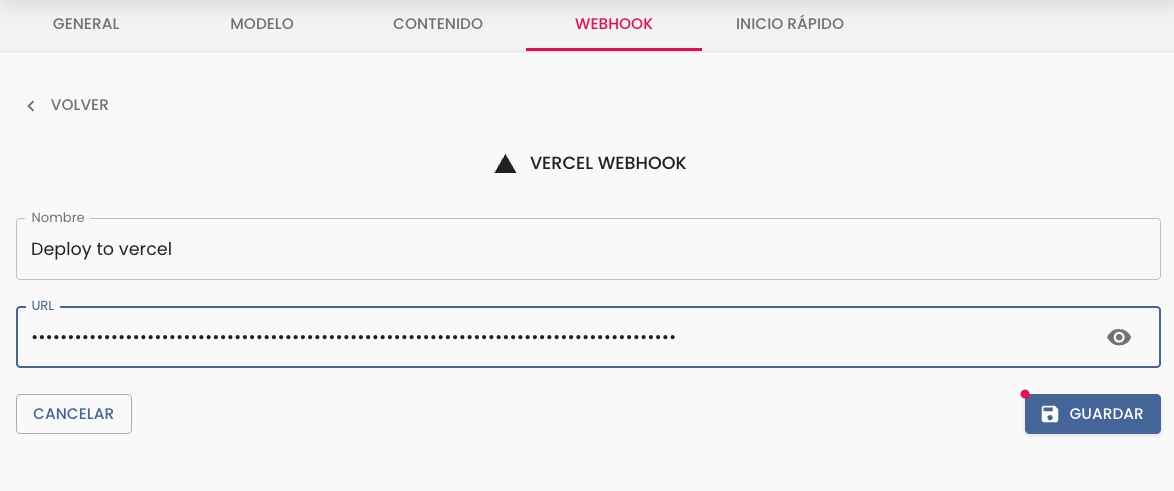
A partir de ahora, cada vez que publiques contenido, Content Island notificará a Vercel para reconstruir tu sitio.
4. Probando el webhook
- Edita el título de un post.
- Pulsa Publish en Content Island.
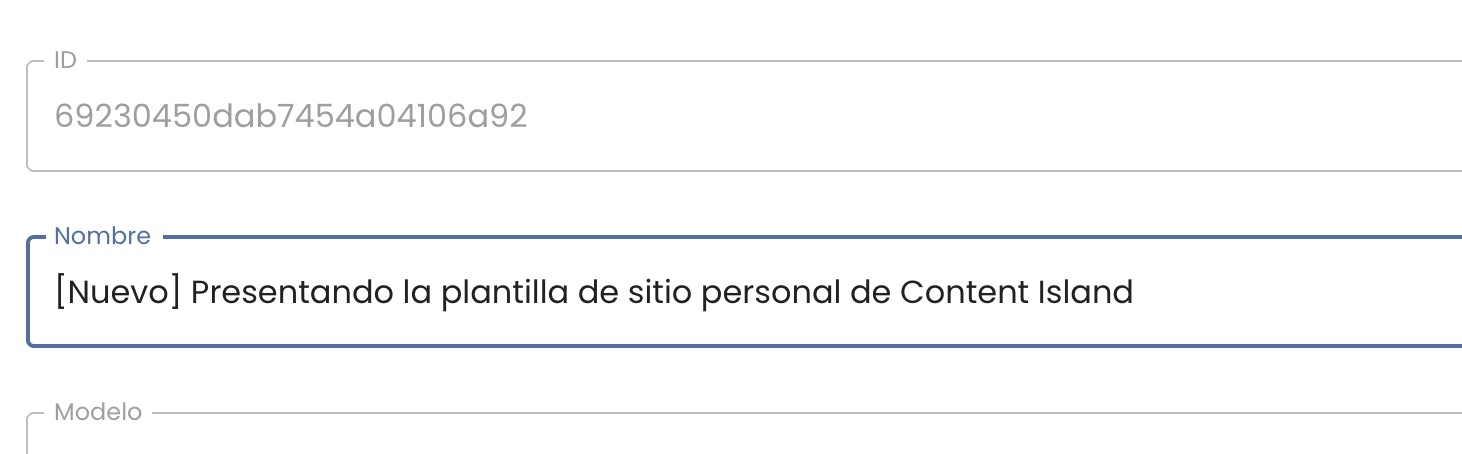
Ve a la pestaña Deployments en Vercel.
Verás que se ha iniciado automáticamente un nuevo despliegue.Espera unos segundos y recarga tu sitio:
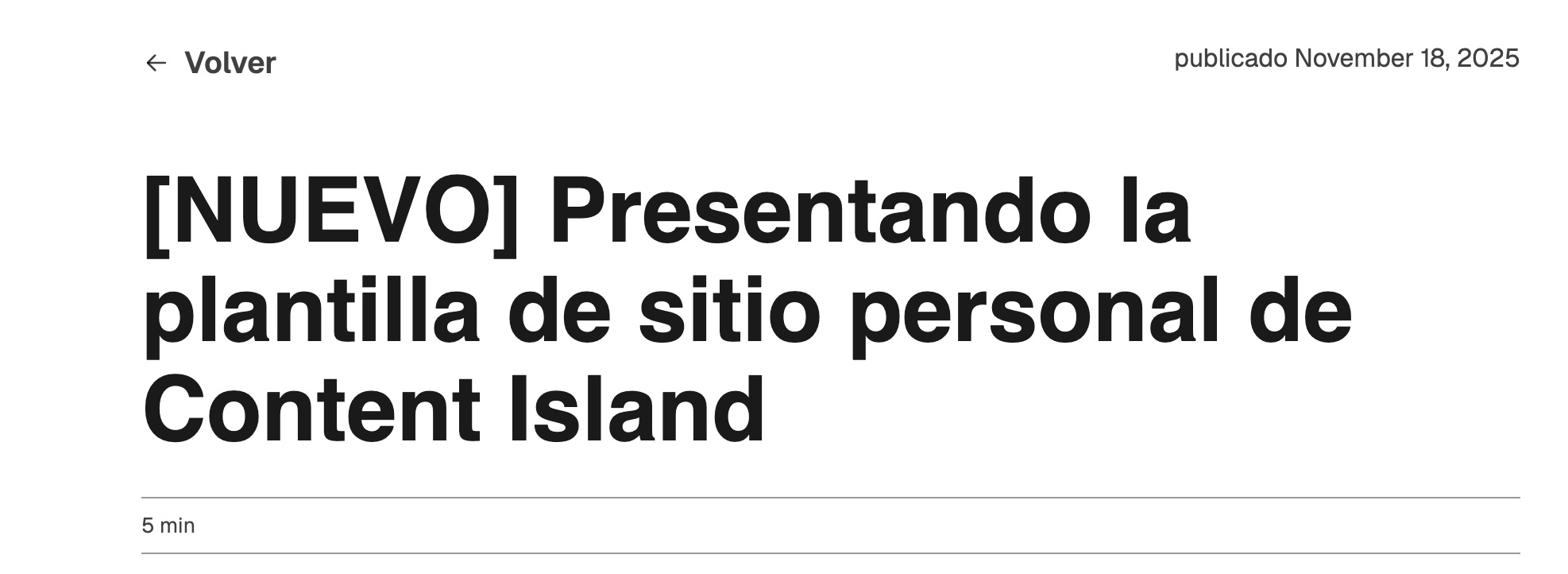
El cambio del post aparece reflejado en producción.
🎉 Conclusión
Con esto ya tienes:
✔ El proyecto desplegado en Vercel
✔ La integración con GitHub
✔ Webhooks automáticos para refrescar tu sitio
✔ Un flujo completo de publicación sin preocuparte por el despliegue
A partir de ahora, ¡solo céntrate en crear contenido! ✨